
Last week, on February 12, 2026, I wrote the fourth part of my series on new QBO Inventory features.
Originally, I had intended for the mini-series to be only four parts long; however, when I got to the final part dealing with Item Receipts, the Item Receipts were not yet active in the QBO-Plus, QBO-Advanced and Intuit Enterprise Suite. As it turns out, Item Receipts started rolling out on February 11, 2026 (according to Intuit) but I hadn't had them 'roll into my version' before I pressed 'publish' on that fourth article.
In that article, I promised just as soon as I could actually check out the Item Receipts once they arrived in my product I would be writing an update to the series. This is Part 4.02 of the series because Item Receipts appear to be exactly as promised in the pre-release notes for this feature.
You will remember that one of the critical functions of inventory management is the ability to ‘receive’ inventory prior to the time the supplier (vendor) actually invoices you for the stock items they sent (or had sent) to you. Until now, you really didn't have a way within QBO to receive without using the Vendor Bill feature (even without a Bill) or using a complicated work around involving an Inventory Adjustment.
Now, those days are over. This new Item Receipt capability works much the same as Item Receipts in QuickBooks Desktop Enterprise. With item receipts you can update quantity on hand as soon as the items arrive. You can also receive full or partial quantities with clear adjustments, and your purchase orders, inventory receiving and vendor bills are all separate, but linked, transactions.
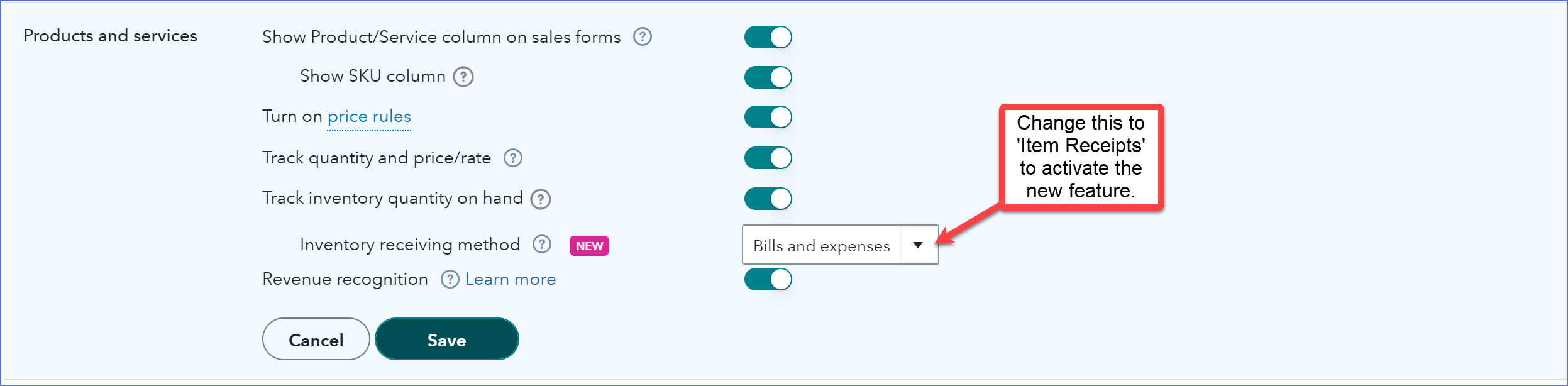
You need to be aware that you must turn this new feature on, and when you do, it changes the workflow related to receiving your vendor purchases, and once you turn this feature on, you cannot turn it off.
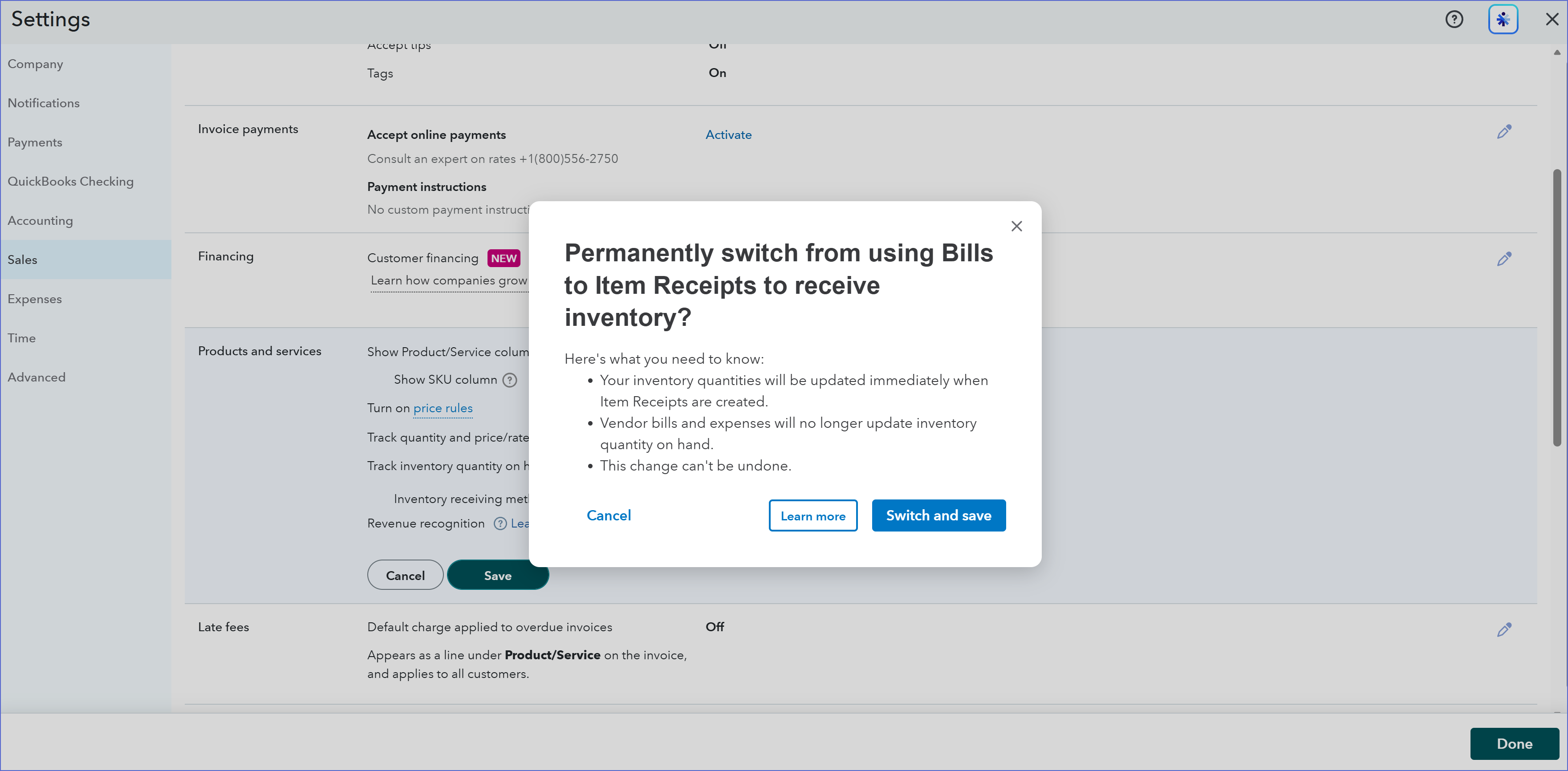
When you choose to use Item Receipts within QBO (or IES), the new ‘workflow’ for Inventory Management becomes:
Issue Purchase Order >>> Receive Inventory via Item Receipt >>> Record Vendor Bill
And, since you cannot turn the Item Receipt feature off within that QBO Company file, you must use this new workflow for all Inventory purchases. Still the same, the ability to record item receipts means increased inventory accuracy by recording quantity on hand as it is actually received (not billed). That means you can reduce disputes with suppliers because you are tracking potential discrepancies at the time the items are received, not later when the Vendor's Bill arrives.
I took you through the steps to turn-on Item Receipts in last week's article, so I'm not going to go back through those steps. Instead, let's look at the steps to use these new Item Receipts, and then post a Vendor's Bill against the Item Receipt.
Receiving Purchase Order Inventory with an Item Receipt
To receive inventory items against a Purchase Order, create an Item Receipt. There are several ways you can create an Item Receipt. One is from the list of Item Receipts found under Inventory; however, if you haven't yet created an Item Receipt this is not the way you want to create one. With that said, I will still take you through those steps.
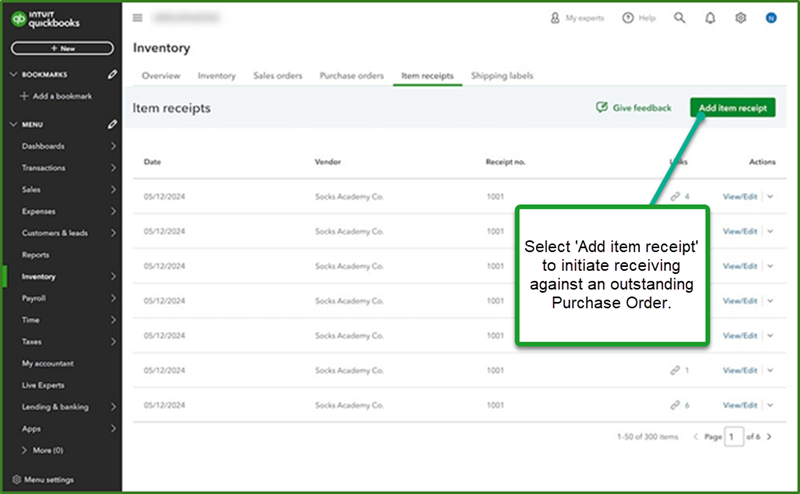
Creating Item Receipts from the Item Receipt Tab of Inventory:
- Go to Inventory.
- Choose the Item receipt tab.
- Click the green Add Item receipt button.
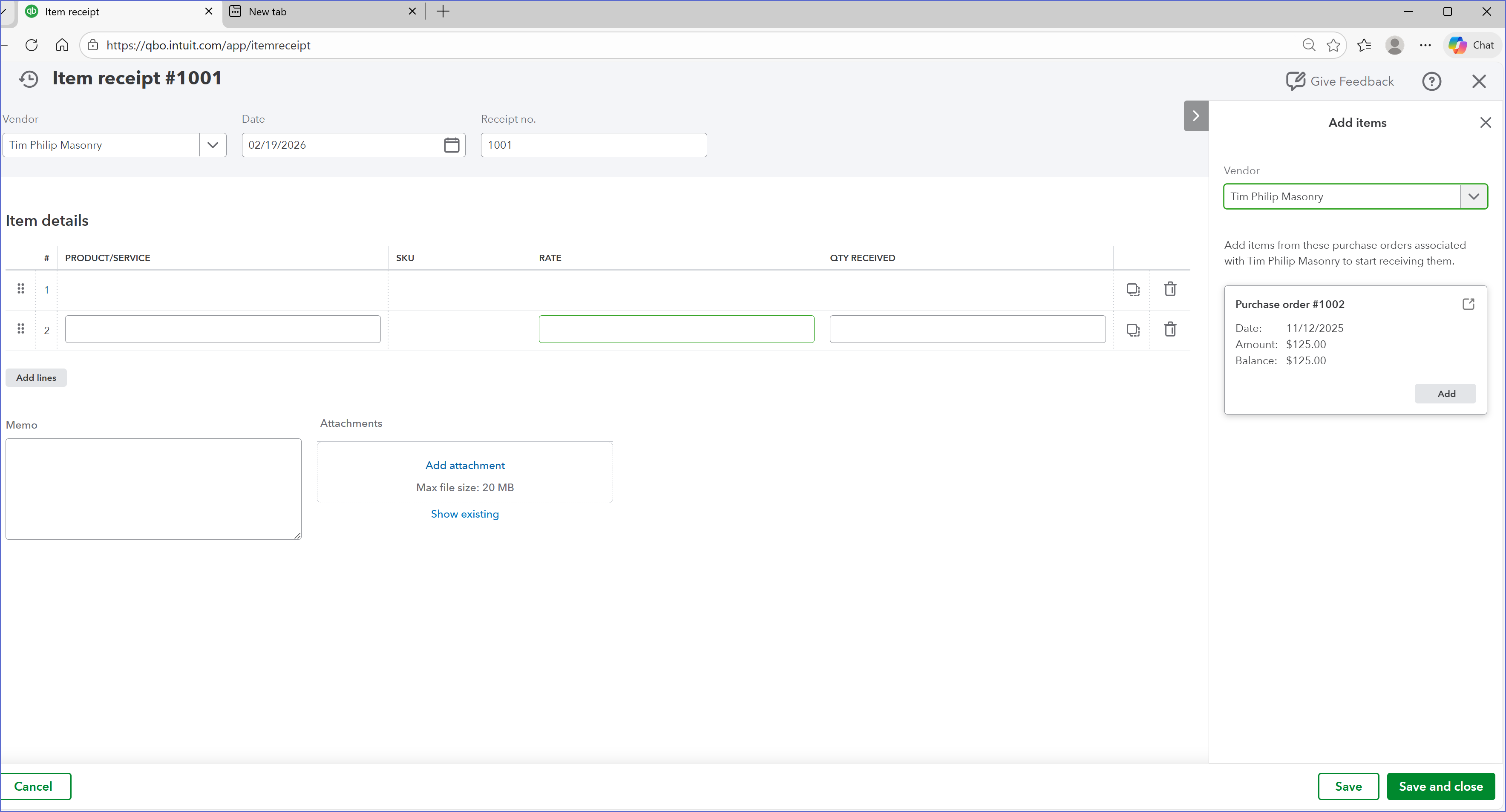
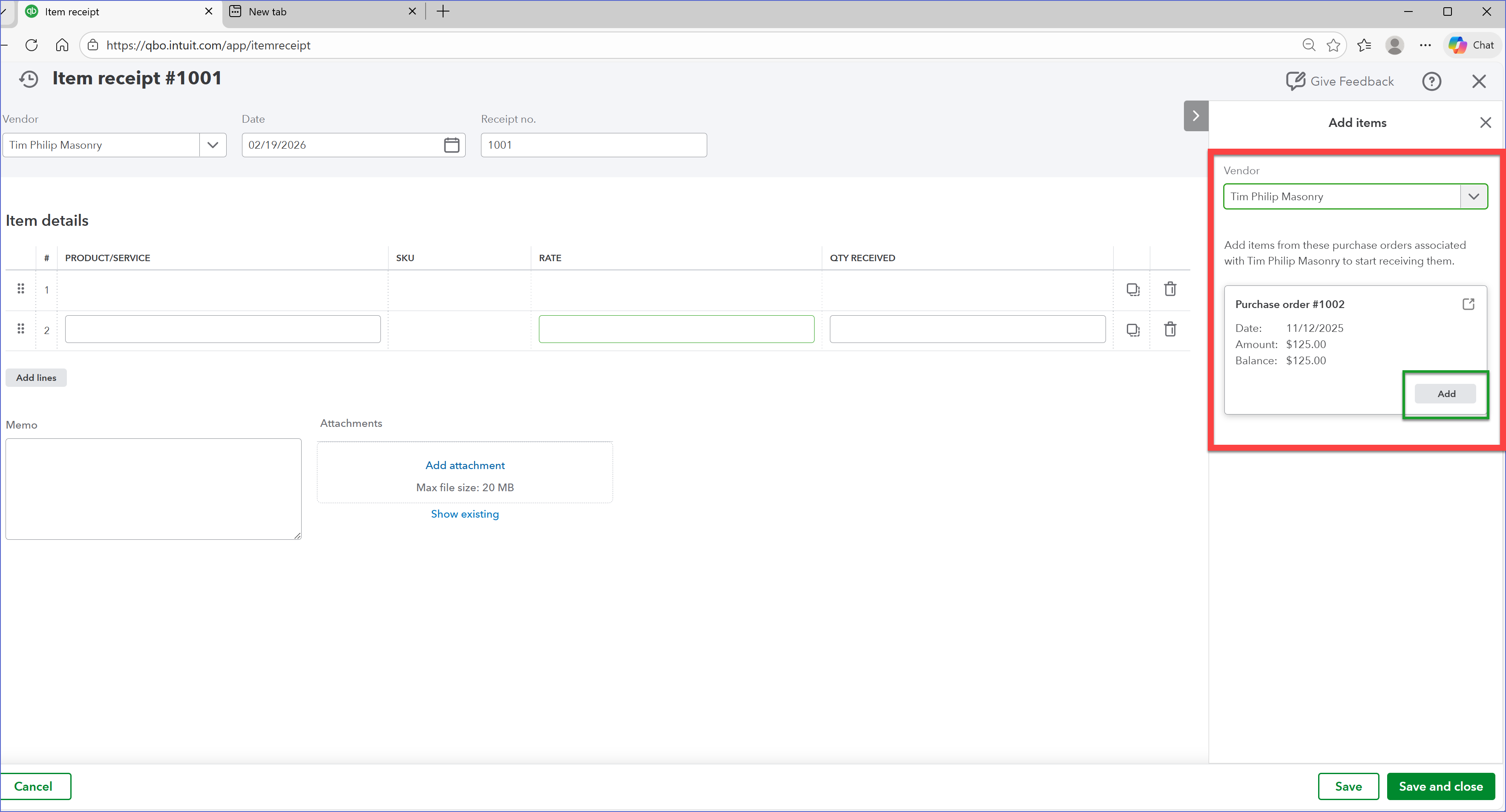
- When the Item Receipt form opens, select the Vendor.
-
- Choose the Purchase Order to receive against from those available in the right hand Add Items window.
-
- Click Add.
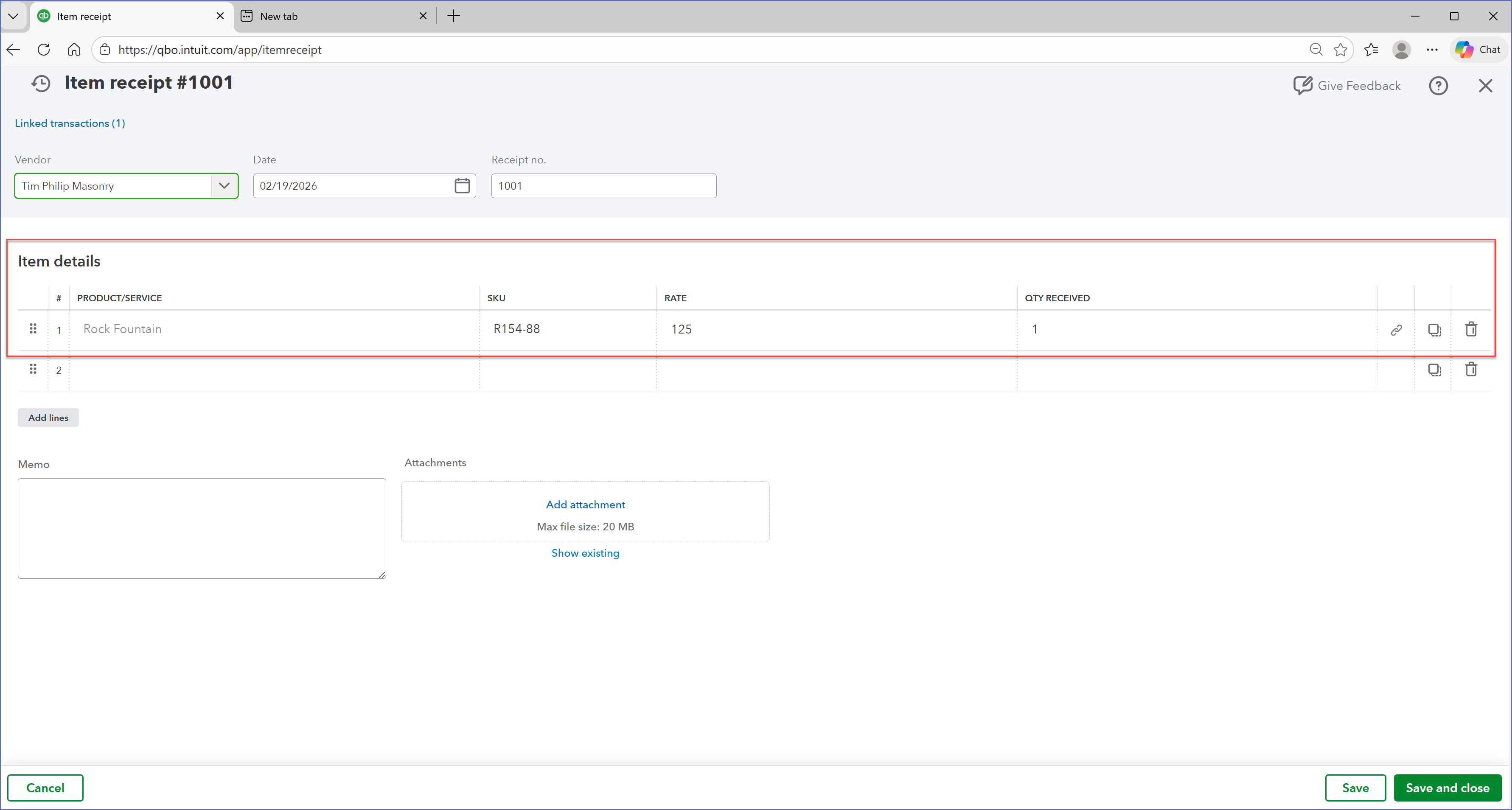
- Select the stock item(s) on the Purchase Order to receive and enter received quantities.
-
- Once you have recorded all items received, click Save, or Save and close.
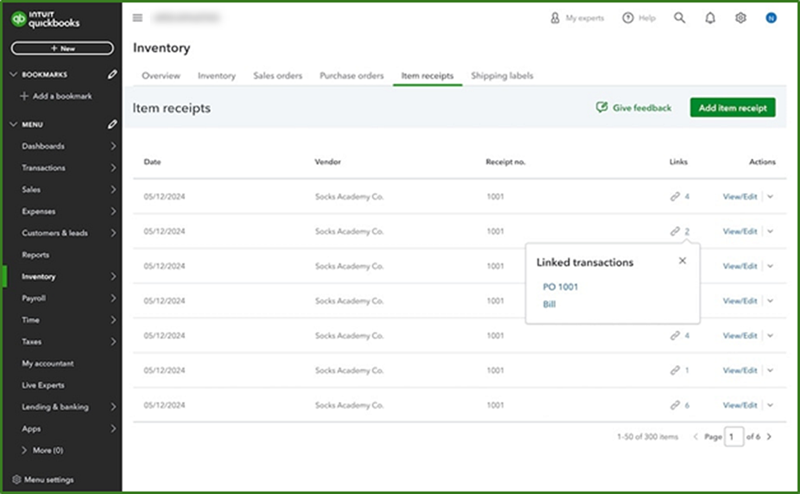
When you create an Item Receipt from a Purchase Order, the Item Receipt and Purchase Order are automatically linked together. This ensures better tracking of received and pending items.
Entering Vendor Bills Against Item Receipts
When you receive the vendor’s Bill for the items you previously received using an Item Receipt, you will enter the Vendor Bill to record the complete chain of events and schedule the Bill for Payment.
Recording the Vendor Bill:
- Go to Inventory.
- Choose the Item Receipt tab
- Select the Vendor from those available.
- Identify the Vendor against whom the Item Receipt has been issued.
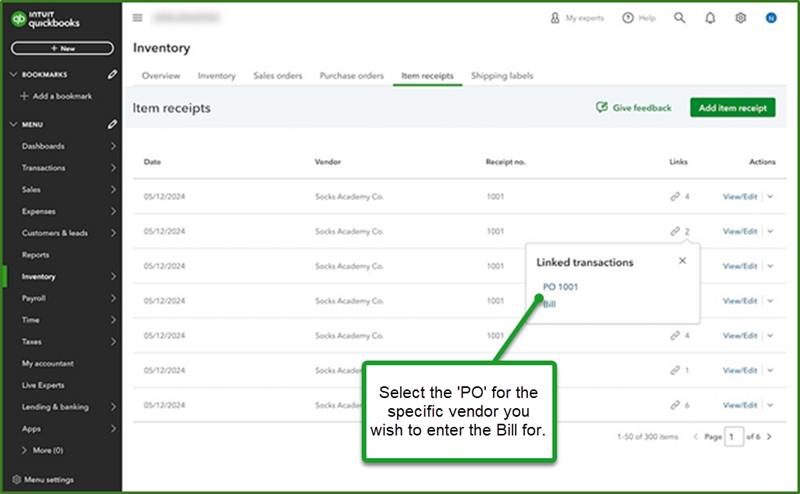
- Choose the Purchase Order to receive against, from those available.
- Select the option to create a Bill.
- Select the item receipt for the bill, then select OK.
- If necessary, change the date shown and the amount in the bill.
- Enter the vendor's terms.
- Select Save.
When you enter the Vendor’s Bill, the Purchase Order will be closed. Using this approach provides clear visibility into the purchasing workflow: from Purchase Order to Item Receipt, to Vendor Bill (and ultimately Payment to the Vendor). Further, because the Purchase Order, Item Receipt and Vendor Bill are all linked together within QBO1, you can see the complete chain of events.
This is one of the major inventory features that QBO-Plus, QBO-Advanced and Intuit Enterprise Suite have been needing to help transition them for major inventory-centric businesses. Thank you Intuit for bolstering the inventory functionality of the online products.
Footnotes & Disclosures:
Footnotes:
1- the term ‘QBO’ used here is intended to specifically mean: QuickBooks Online Plus, QuickBooks Online Advanced and Intuit Enterprise Suite. The feature will also be available to those ‘other QBO SKUs’ that incorporate an optional ‘inventory feature’ for QuickBooks.
Disclosures:
Some feature content was adapted Intuit media source content including In-product Help or other Customer Support web content. Some content including graphic images captured during actual product use. Features adapted by Insightful Accountant from Intuit source content are furnished for educational purposes only.
Intuit® Inc., is a publicly traded corporation headquartered in Mountain View, California. Intuit is the global financial technology platform that powers prosperity for the people and communities we serve. With approximately 100 million customers worldwide using products such as TurboTax, Credit Karma, QuickBooks, and Mailchimp, we believe that everyone should have the opportunity to prosper. We never stop working to find new, innovative ways to make that possible. Please visit us at Intuit.com and find us on social for the latest information about Intuit and our products and services.
Other trade names or references, if any, used within this feature refer to registered, trademarked, or copyrighted materials held by their respective owners and are included only for informational and educational purposes.
This is an editorial feature, not sponsored content. No vendor associated with this article has paid Insightful Accountant or the author any remuneration to be included in this feature. The article is provided solely for informational and educational purposes.
Note: Registered Trademark ® and other registration symbols (such as those used for copyrighted materials) have been eliminated from the articles within this publication for brevity due to the frequency or abundance with which they would otherwise appear or be repeated. We attempt to credit such trademarks or copyrights within our respective article footnotes and disclosures.