This procedure explains how to reconcile bank and credit card accounts in QuickBooks Online using the AI‑powered Reconcile Companion to ensure account balances accurately match financial statements.
Overview
Reconciliation is a monthly process that compares transactions recorded in QuickBooks with those shown on bank or credit card statements. The Reconcile Companion assists by extracting statement data and matching it to existing transactions in QuickBooks Online.
Prerequisite
-
Monthly bank or credit card statement
-
Access to Accounting within QuickBooks Online
- Navigate to All apps, select Accounting, and choose Reconcile.
- Enter the statement Ending balance and Ending date.
- Select Upload from this device and upload the corresponding bank or credit card statement.
- Allow the Reconcile Companion to extract and analyze the statement data.
- Select Start reconciling.
Reviewing Transactions
- Open the Insights tab to review reconciliation results.
- Paired transactions indicate successful matches between QuickBooks and the statement.
- Transactions needing review are items within the statement period that remain unmatched.
Select the checkbox next to each transaction that matches the statement. As transactions are selected, the Cleared balance updates automatically. Reconciliation is complete when the Difference equals $0.00.
Troubleshooting
- If a transaction is selected incorrectly, it can be unreconciled.
- Review any additional uncleared transactions in QuickBooks that do not appear on the statement. Common causes include timing differences, duplicate entries, manual transactions, or uncleared transfers or deposits.
- If necessary, select Edit info to adjust the ending balance or ending date.
Completing the Reconciliation
Once the difference is $0.00, select Finish now, then Done. QuickBooks automatically saves a reconciliation report.
Referencing your Reconciliation
Reconciliation reports can be accessed from the Reconcile page by selecting History by account.
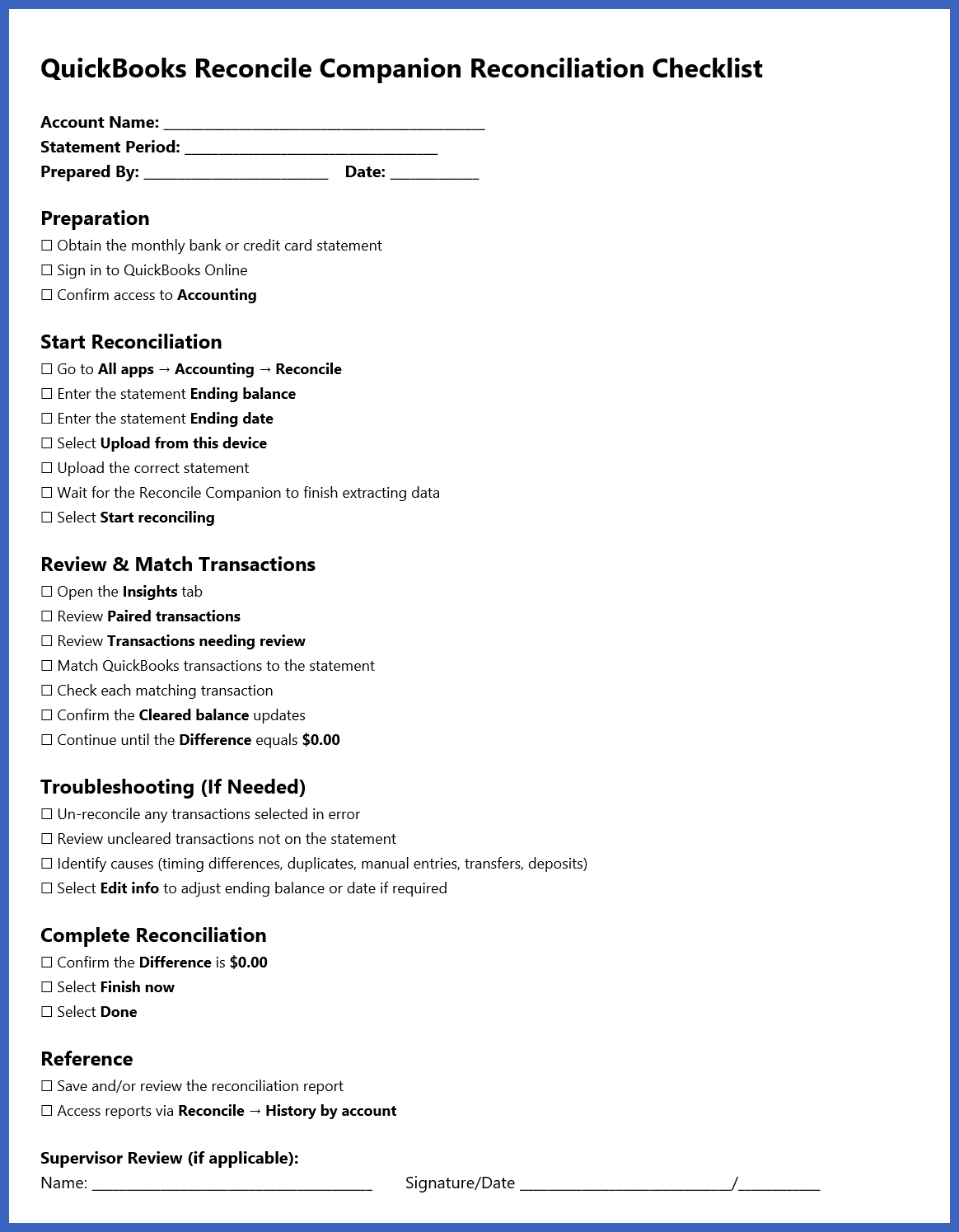
Supplemental Checklist
To assist you or your clients with this process, you will find a Checklist graphic below that can be reproduced for either educational or instructional purposes.