
This special edition of the QuickBooks Monday Minute is more than a 'minute read' because it is a step-by-step of migrating to QuickBooks Workforce.
Many QuickBooks users have problems with switching payroll because even though they migrated from Desktop to Online, they kept using their prior Payroll providers who told them it was ‘just as simple’ to update QBO with payroll as it was Desktop.
But over time, they are starting to recognize that their '3rd-party Payroll provider’ cannot supply the kinds of detail that QuickBooks Workforce provides to QuickBooks users, especially if they are using cost-tracking or 'dimensionality' associated features in QuickBooks Plus and QuickBooks Advanced.
So now, they are wondering if they shouldn’t switch to QuickBooks Workforce to maximize their QBO functionality. They hang-back because they’ve always been told that switching payroll providers typically means rekeying a year of history, and they should wait to year-end to make the switch so as not to compromise the current year's payroll records.
Then at year end, when they tell their payroll provider they intend to start the new year with QuickBooks Payroll, they are told, well you will need to keep your current subscription with us for at least a couple of months in order to produce end of year payroll reports and W-2s, etc.
What, “pay for two payrolls, no way?” So, another year goes by just as it was.
But you don’t need to wait to year end, you can be ready for the new year and be on QuickBooks Workforce because you don’t have to rekey your payroll. You can migrate your payroll to QuickBooks Workforce6 from ADP, Gusto and also, Paychex1—without re-entering all your payroll data.
QuickBooks Workforce now lets you upload reports from your current provider and Intuit Intelligence extracts your employee data, pay items, deductions, taxes, and year-to-date pay history.
Then an Intuit Payroll Expert will review you import before it posts to your Workforce Payroll, Premium or Elite, account. Because an expert reviews the data before it is posted into your QuickBooks account, your year-to-date wage and tax totals are migrated accurately for filings and W-2s.
If problems are encountered, you and your Workforce representative can focus on only the items that need specific resolution, speeding up setup and time to first payroll.
And, if you are using a payroll provider other than ADP, Gusto and Paychex, Intuit Workforce has a guided spreadsheet available to assist with importing that payroll data.
Let’s dive a little deeper into making the switch.
You can switch on any QuickBooks Workforce plan. Intuit QuickBooks Workforce and QuickBooks Workforce Premium offer guided setup, which means you complete the switch yourself. QuickBooks Workforce Elite includes expert-led onboarding. This means an onboarding expert handles the process for you.
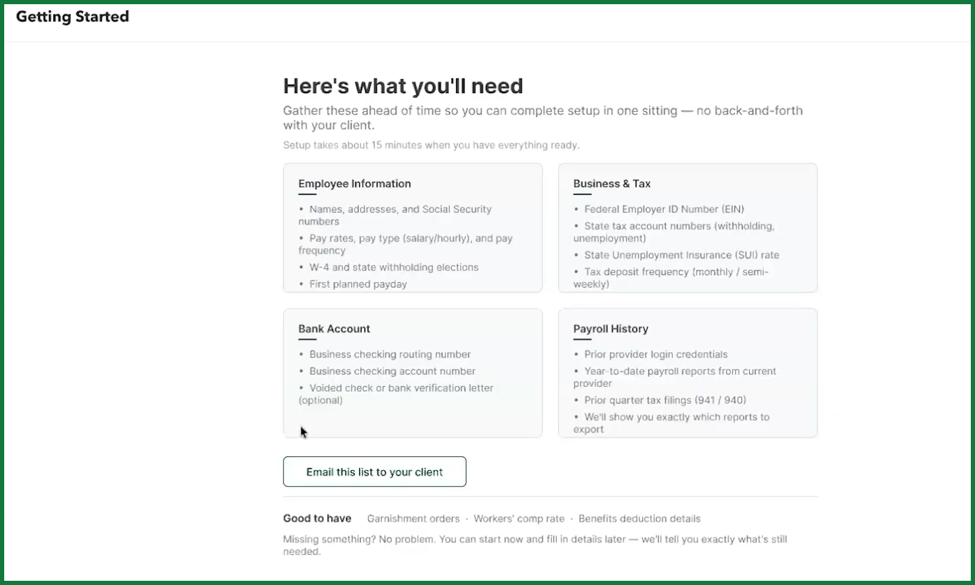
To make the switch, regardless of the QuickBooks Workforce plan you select, you will need the following information.
-
Your business information and planned first pay date.
-
Two reports from your current payroll provider:
-
If you're switching from ADP: Employee Summary and Earnings record.
-
If you're switching from Gusto: Employee summary and payroll journal.
-
-
You’ll also need your bank and tax details later in setup.
You also need to check the two report files to ensure they meet the proper requirements. You should not need to change the format of files exported from your provider; you should be able to upload the files in the format they are supplied/downloaded in.
To be a little more specific, let’s look at the reports you need specifically from each of the three Third-party Payroll Providers.
ADP RUN Payroll download:
-
Employee Summary or Census Report: Include employee hire dates, contact information, pay rates, and filing statuses.
-
Payroll Details or Year-to-Date Summary Report: Include wages, employee tax withholdings, and employer taxes for the current calendar year.
-
Download the reports as PDF, Excel, or CSV files.
Gusto Payroll download:
-
Employee Summary Report: Include all active and dismissed employees for the current year.
-
Year-to-Date Payroll Journal: Include gross pay, deductions, taxes withheld, and company contributions for each employee.
-
Download the reports as PDF or CSV files.
Paychex Payroll download:
-
Employee Personal Data Listings: Include all active and dismissed employees for the current year.
With the files downloaded, you are now ready to follow these steps to switch to QuickBooks Workforce.
(1) Sign in to QuickBooks Workforce as the Primary Admin.
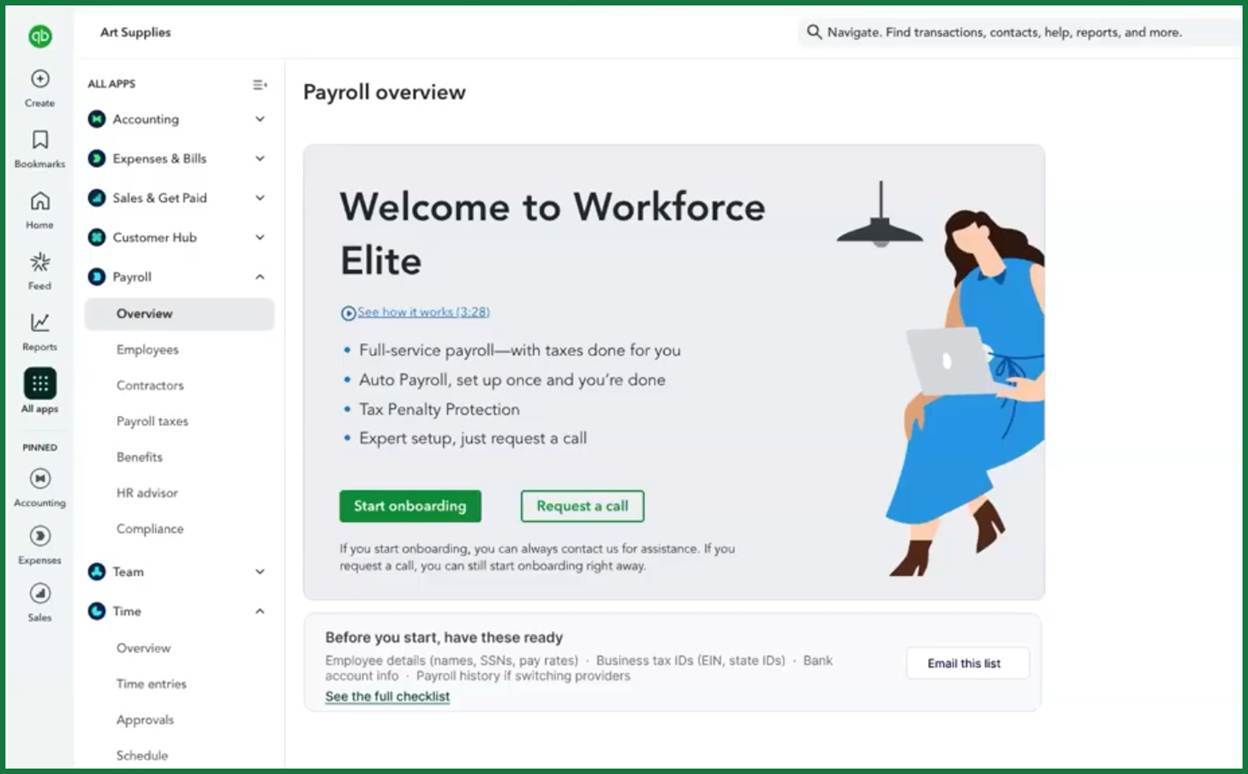
(2) Choose Start Onboarding (the green button above).
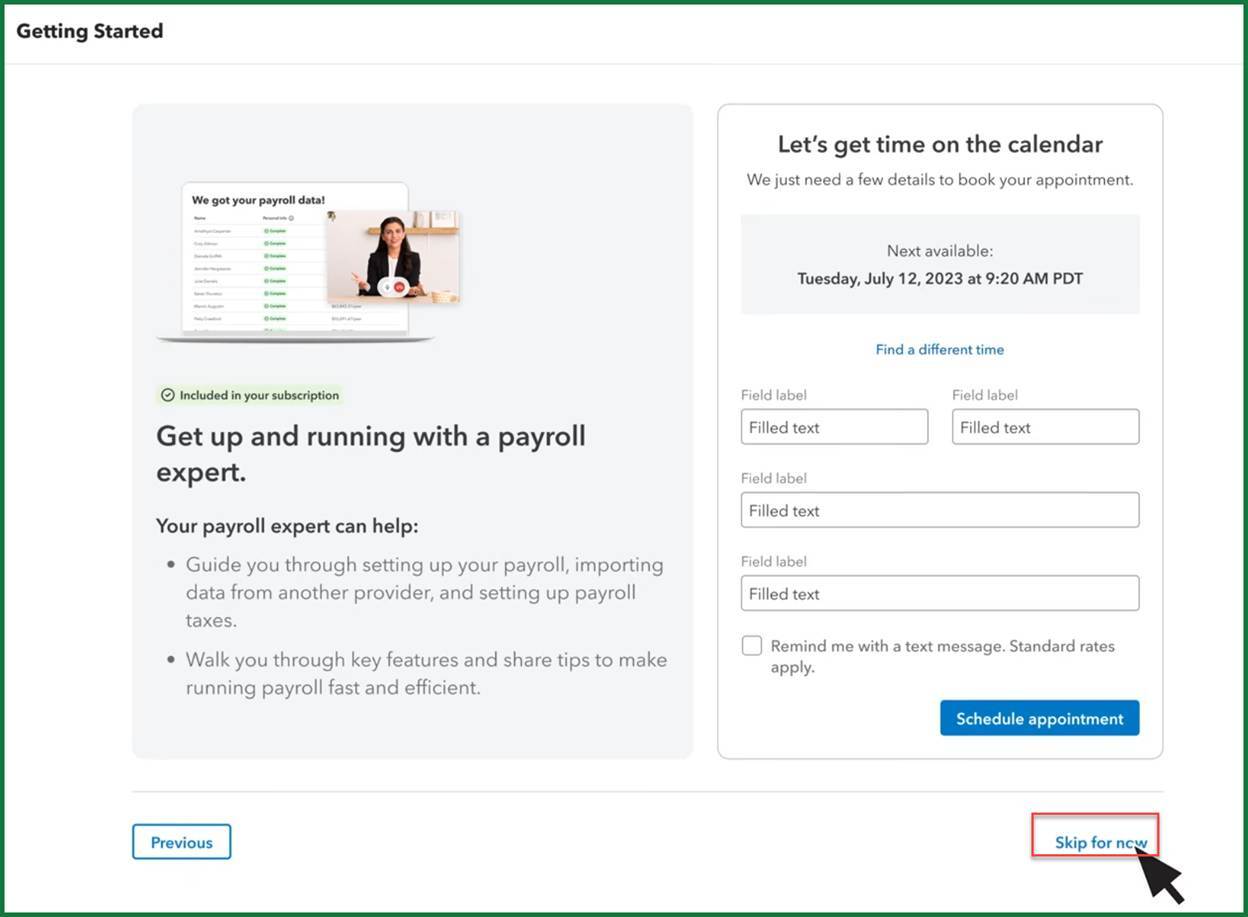
(3) Click Skip for now
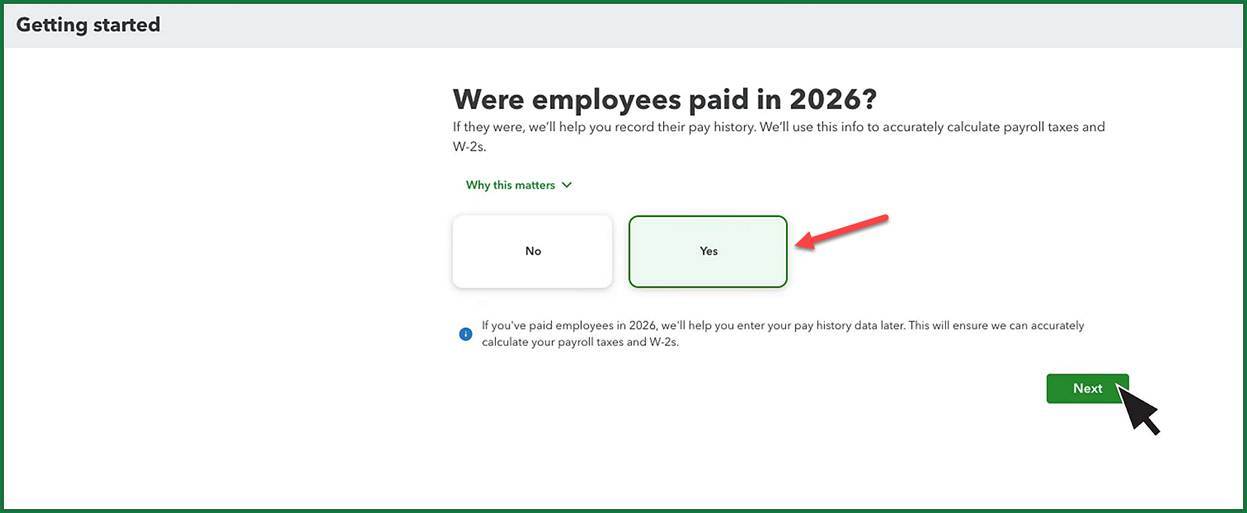
(4) QuickBooks asks if employees were paid in 2026, answer Yes, click Next.
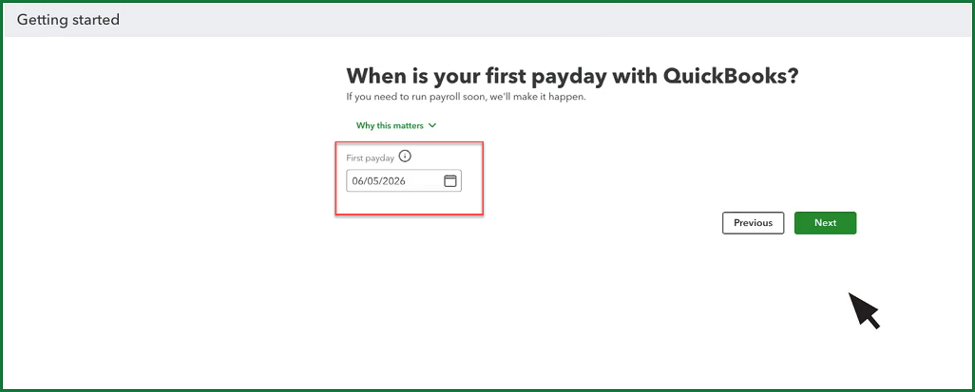
(5) QuickBooks ask about your first payday with QuickBooks, enter a date, select Next.
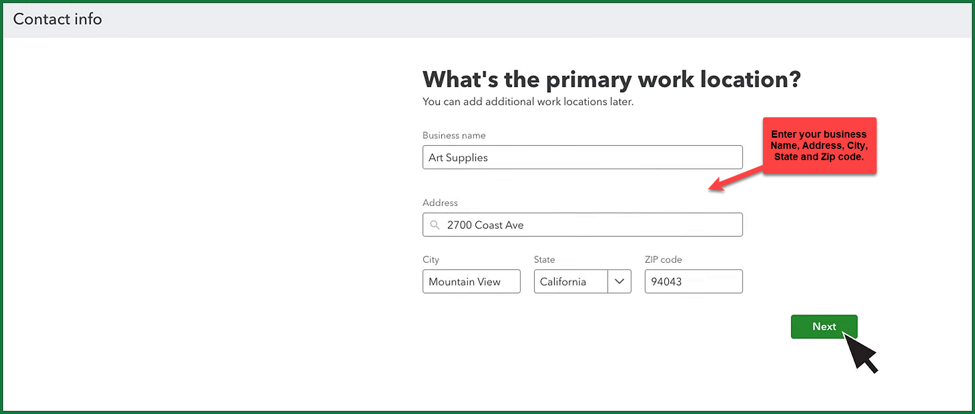
(6) QuickBooks ask you about your primary work location, enter your Business Name, Address, City, State and Zip code, the click Next.
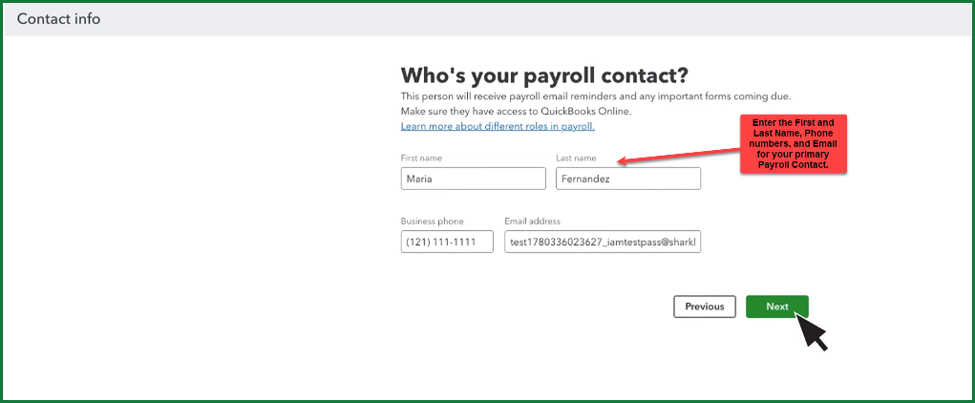
(7) QuickBooks then asks you who’s your payroll contact, enter the First and Last Name, Business phone number, and Email address for the person who will be responsible for payroll; then select Enter.
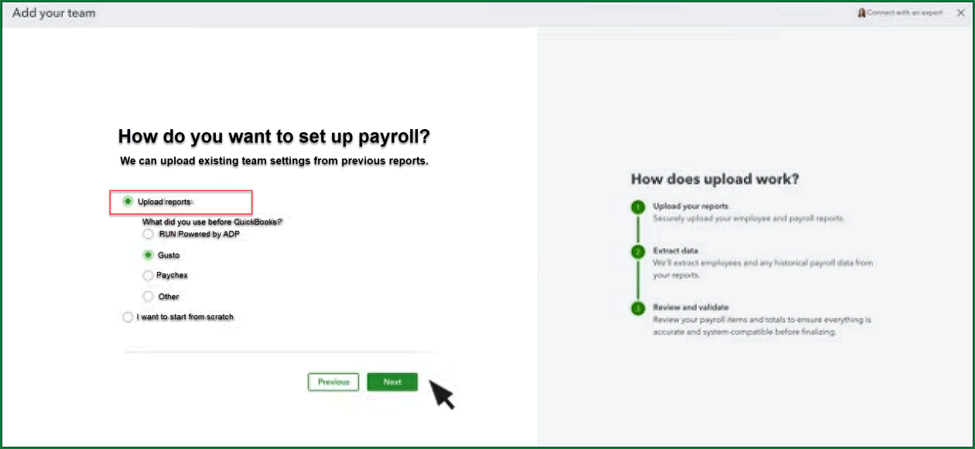
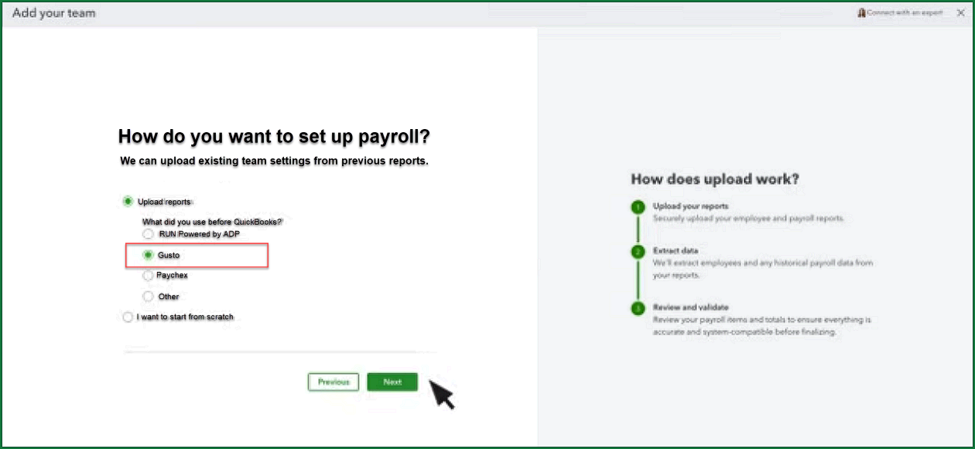
(8) When asked how you want to bring over your payroll data, select Upload Report.
(9) Below is a list of what you will need to Upload depending on your prior Payroll vendor.
(10) Select ADP, Gusto or Paychex as your previous provider, then click Next. (In our example we are selecting 'Gusto'.)
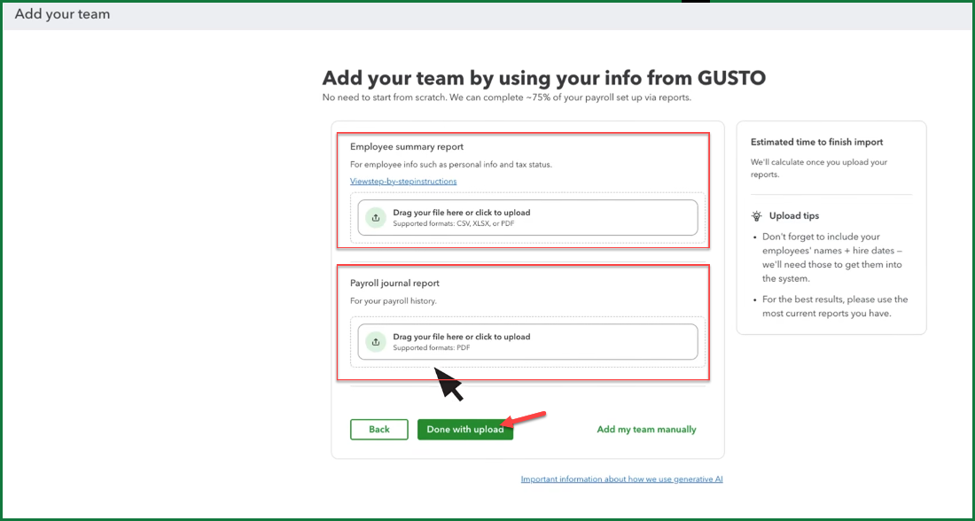
(11) Add your team using the files you downloaded from your payroll vendor, in this case we are illustrating Gusto. Drag and drop your Employee summary report, then drag and drop your Payroll journal report. You can optionally click to locate and upload the reports. After you’ve loaded both reports, click Done with upload.
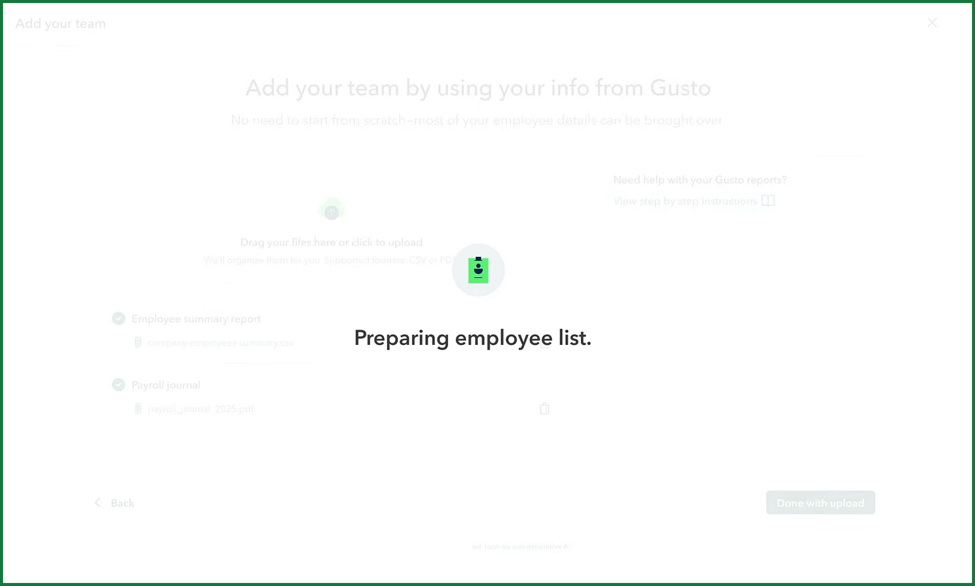
(12) Wait while QuickBooks imports your employee records and year-to-date payroll history, and Intuit AI extracts the payroll information for posting to Workforce and QuickBooks. Please note that most imports are ready for review within a few hours. Complex payroll histories may take longer.
(13) A Workforce Expert reviews your employee details and payroll records. For ADP and Gusto, they also review your prior wages, tax jurisdictions, deductions, and benefits. You can leave the setup screen during the review. You’ll receive an email when the review is complete.
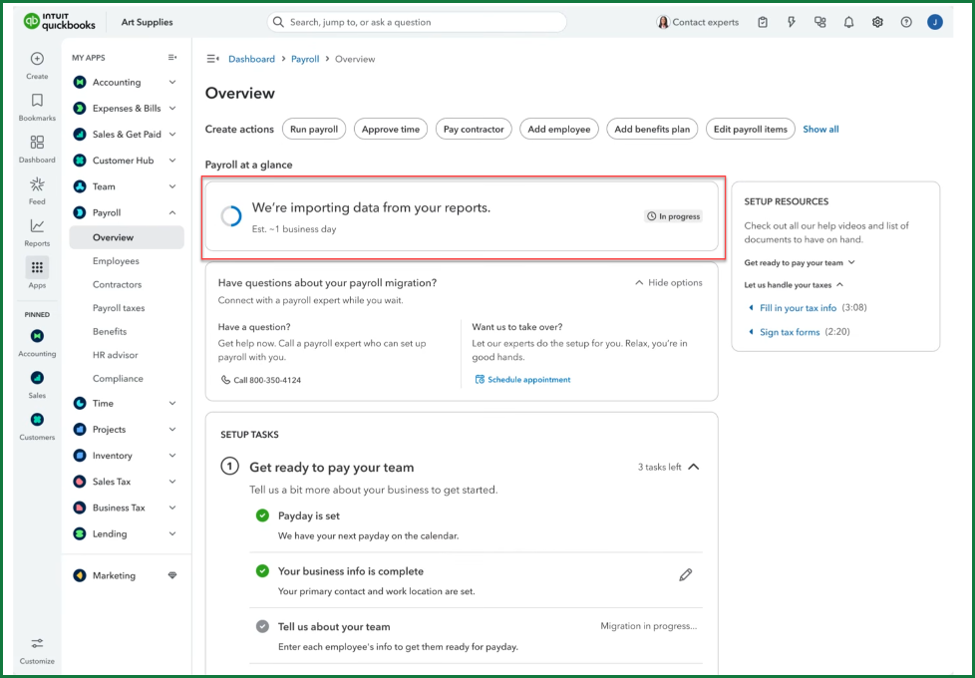
(14) Follow the link in the email, or click the Review (your payroll data migration is incomplete) button in Payroll Overview.
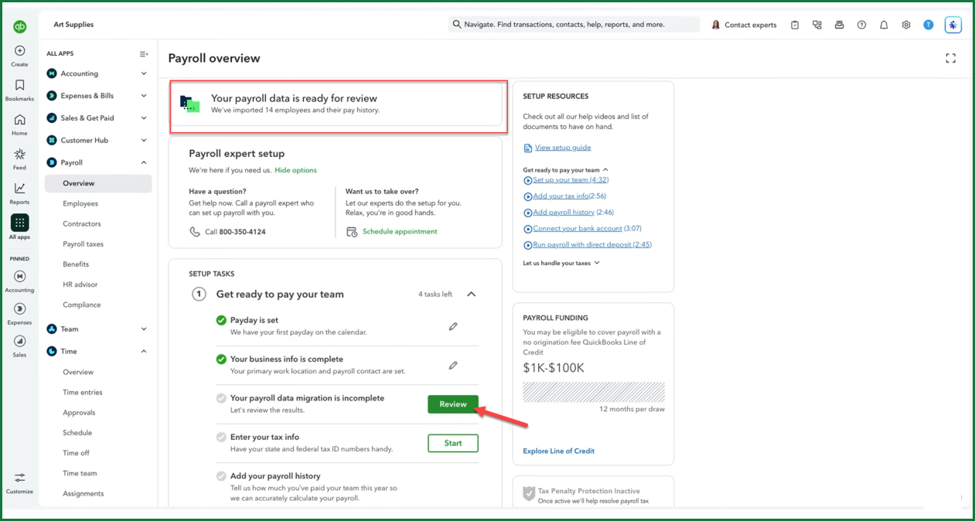
(15) Review your imported employees. For ADP and Gusto, also review the imported wage information.
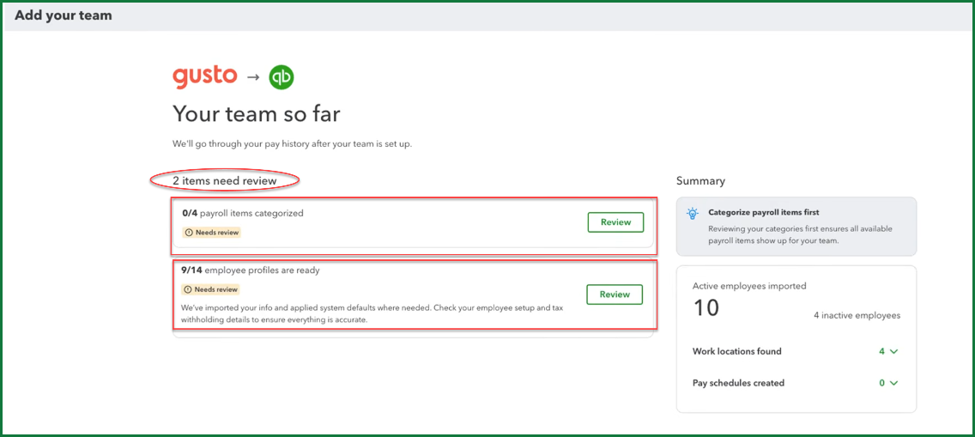
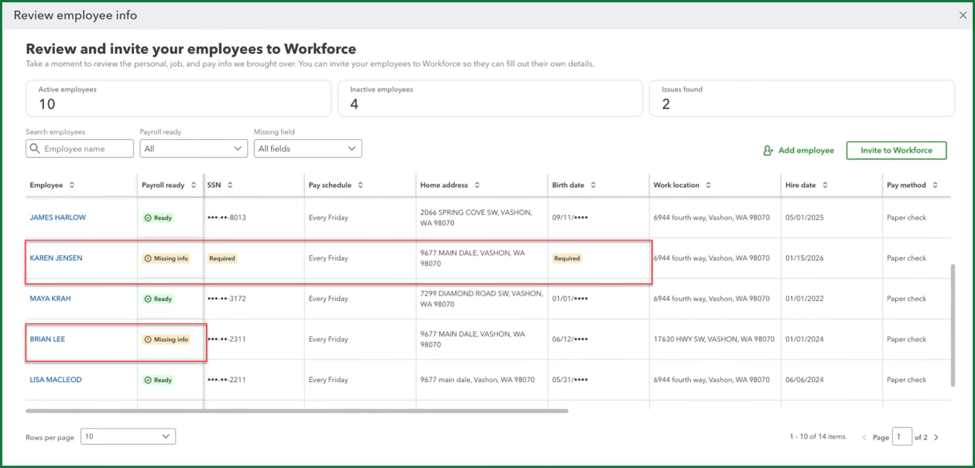
(16) Add any missing information using the review grid. Some providers hide sensitive details, such as Social Security numbers and bank account information, in exported files.
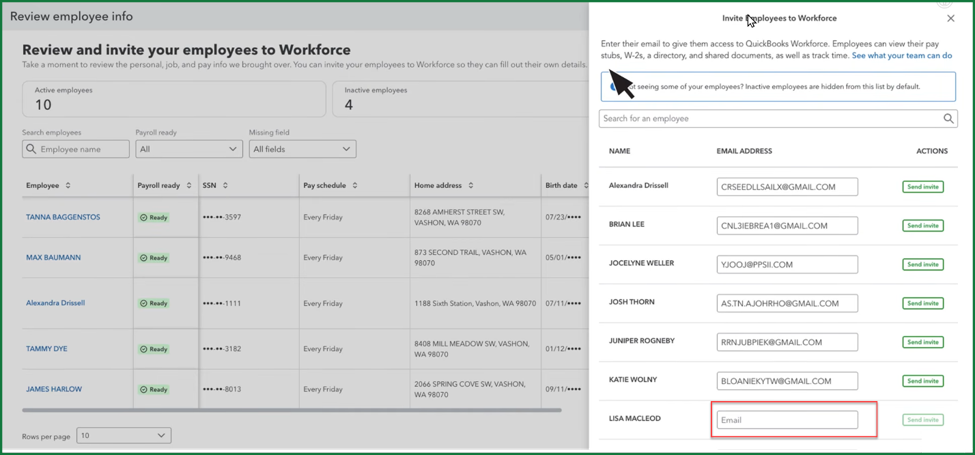
(17) Invite your employees to enter their information securely through QuickBooks Workforce.
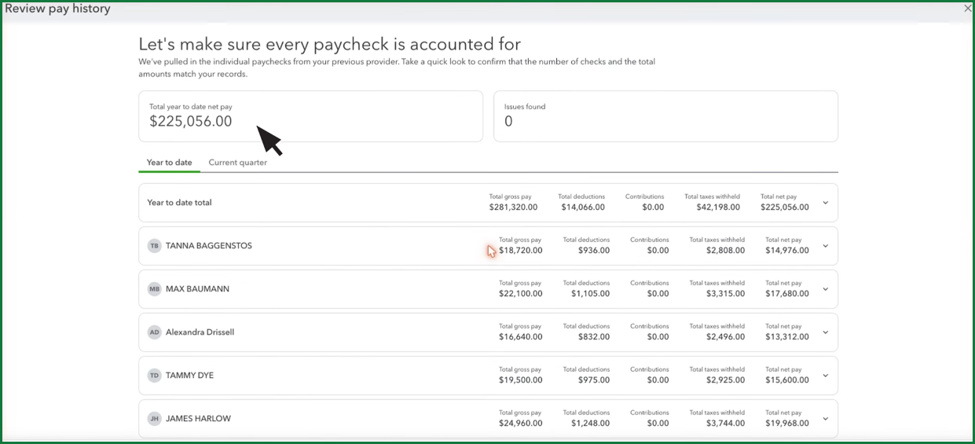
(18) Review and confirm all imported employee records and year-to-date payroll history before running your first payroll.
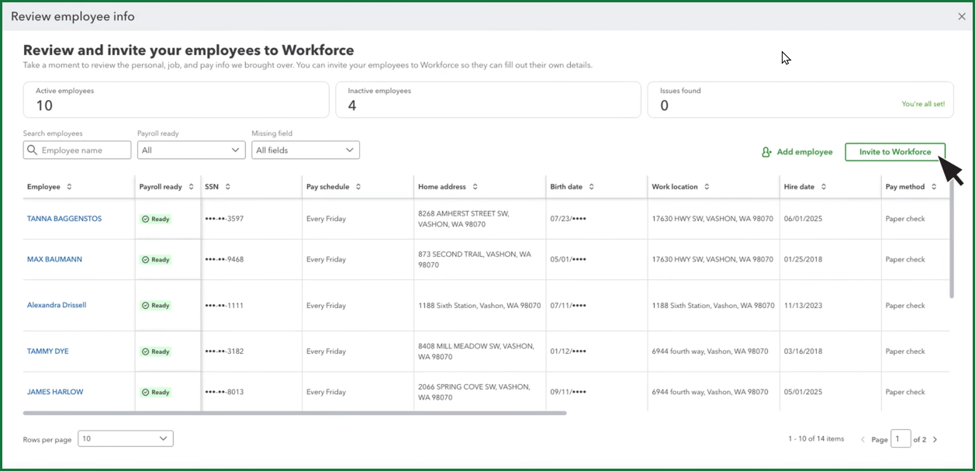
(19) Now confirm your imported information.
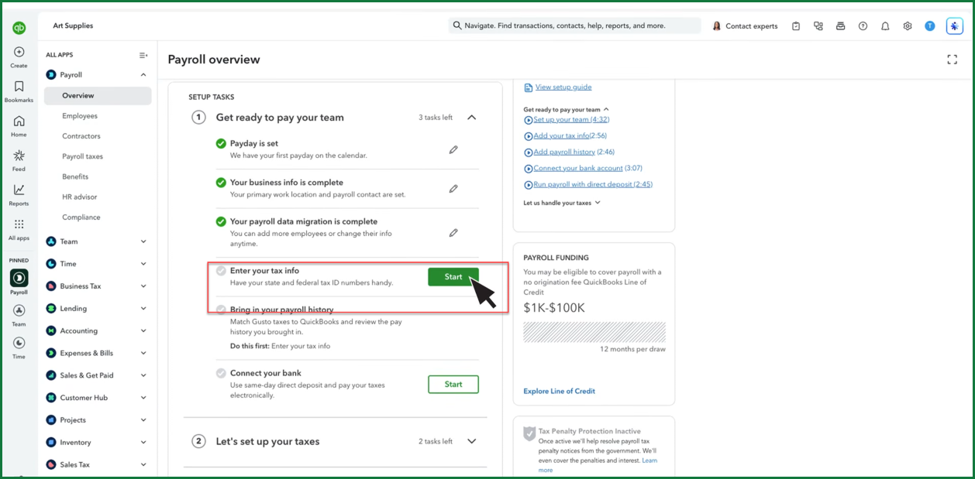
(20) Complete the remaining payroll setup steps, including adding your bank and tax details.
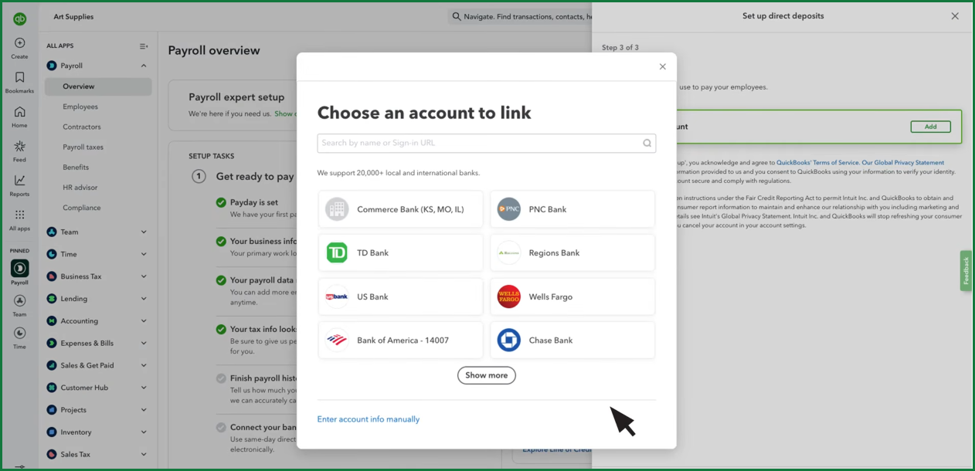
(21) Connect your business payroll bank account
(22) Verify your Payroll-tax setup.
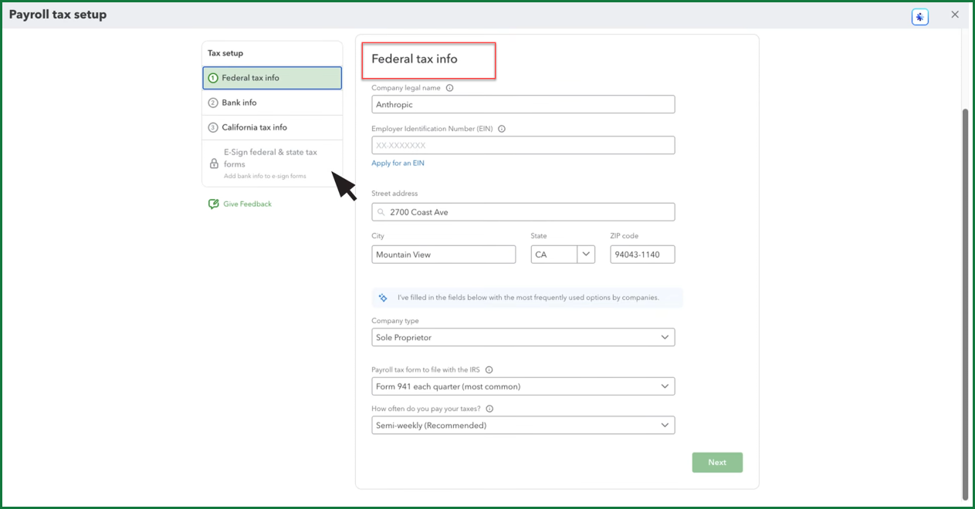
(23) Select Finish setup, and the “You’re ready to pay your team today” screen appears.
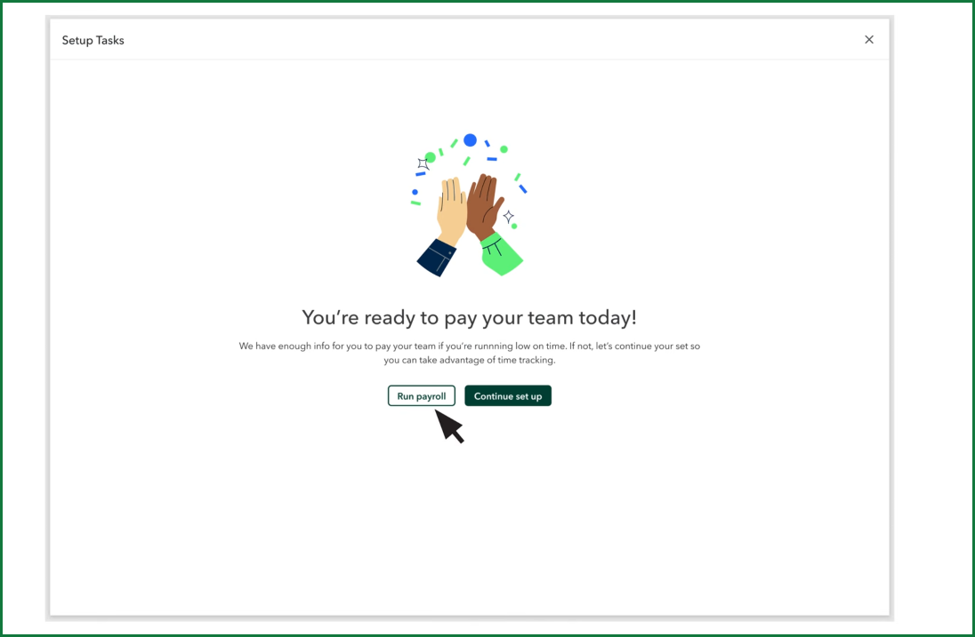
(24) Then chose Run payroll.
QuickBooks Workforce is making it easier than ever to migrate from other major third-party Payroll providers to QuickBooks.
Footnotes & Disclosures:
1 - Migration from Paychex may not be as complete a migration as from ADP or Gusto. At the time of this article, such migrations were limited in scope; however, Intuit is working on improving the Paychex migration methodology and outcome.
Feature content adapted from Intuit media source content including QuickBooks In-product 'Help' as well as other Intuit furnished content. Insightful Accountant is not responsible for any original Intuit content.
Intuit® Inc., is a publicly traded corporation headquartered in Mountain View, California. Intuit is the global financial technology platform that powers prosperity for the people and communities we serve. With approximately 100 million customers worldwide using products such as TurboTax, Credit Karma, QuickBooks, and Mailchimp, we believe that everyone should have the opportunity to prosper. We never stop working to find new, innovative ways to make that possible. Please visit us at Intuit.com and find us on social for the latest information about Intuit and our products and services.
Other trade names including, but not limited to, ADP, Gusto, and Paychex, used within this feature refer to registered, trademarked, or copyrighted materials held by their respective owners and are included within this content only for informational and educational purposes.
This is an editorial feature, not sponsored content. No vendor associated with this article has paid Insightful Accountant or the author any remuneration to be included in this feature. The article is provided solely for informational and educational purposes.
Note: Registered Trademark ® and other registration symbols (such as those used for copyrighted materials) have been eliminated from the articles within this publication for brevity due to the frequency or abundance with which they would otherwise appear or be repeated. We attempt to credit such trademarks or copyrights within our respective article footnotes and disclosures.