
Have you noticed that QuickBooks has changed their ‘Run Payroll’ experience that makes it easier to use?
The new functionality allows searching, sorting, and filtering to streamline working with a group of personnel. It also offers bulk actions to simplify the payroll process.
If you have not seen these changes yet, then just be aware that they are on their way for May. Some users in both the U.S. and Canada are already seeing the new experience when they click the Run Payroll on Payroll Overview and Employees tab.
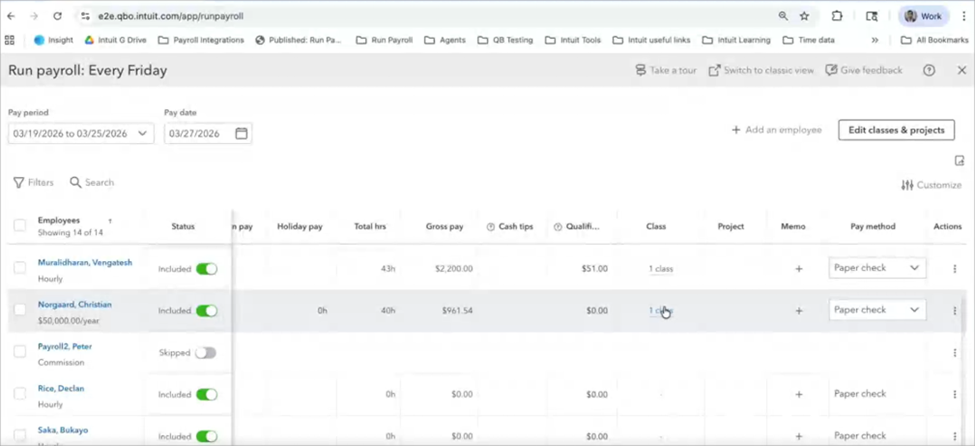
With the click of your mouse, customize the Run Payroll experience to provide the columns you want to see.


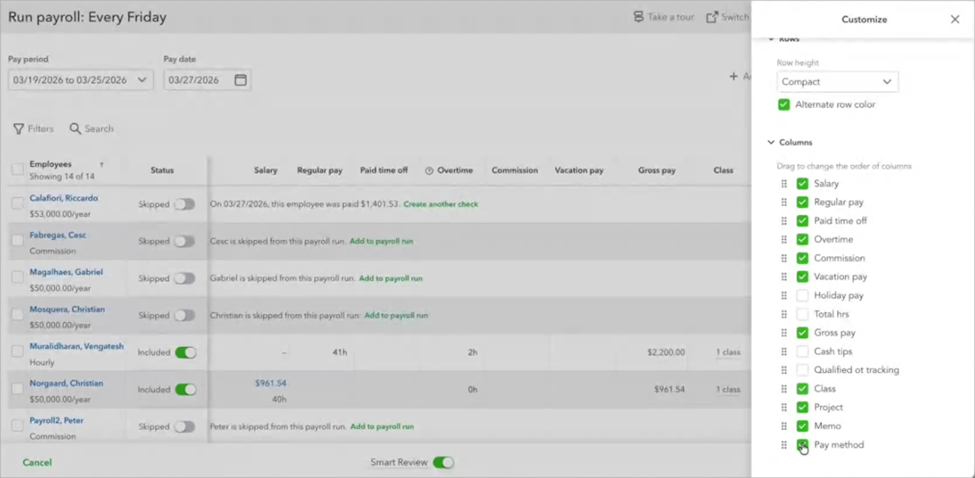
Let's review the steps to Run Payroll for a ‘scheduled payroll’:
1) Go to All apps, then Payroll, then Employees.2) Select Run payroll.
3) Select the pay schedule you want to run, then select Continue.
4) Select or review the Pay period and Pay date.
5) Select the employees you would like to pay. Verify the employees automatically included in your scheduled payroll run. This new experience makes it easier to see who is and is not included.
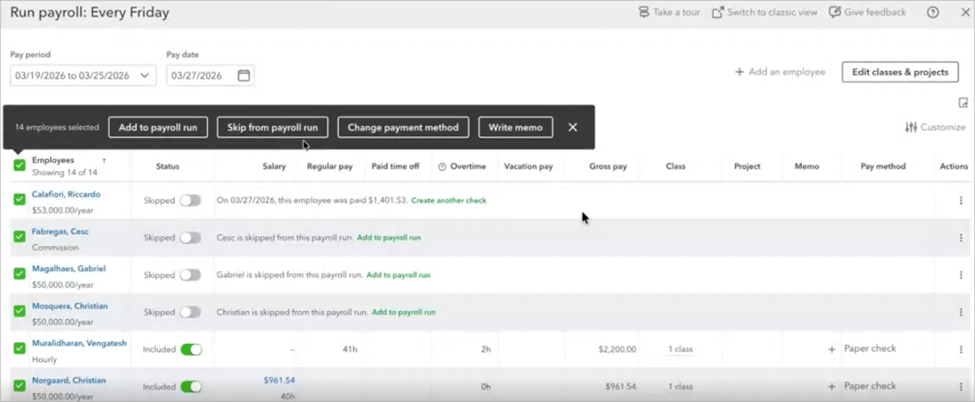
6) Add (or skip) employees from a preconfigured Payroll Run with the click of your mouse to include them and selecting ‘Add to payroll run’ from the prompt.
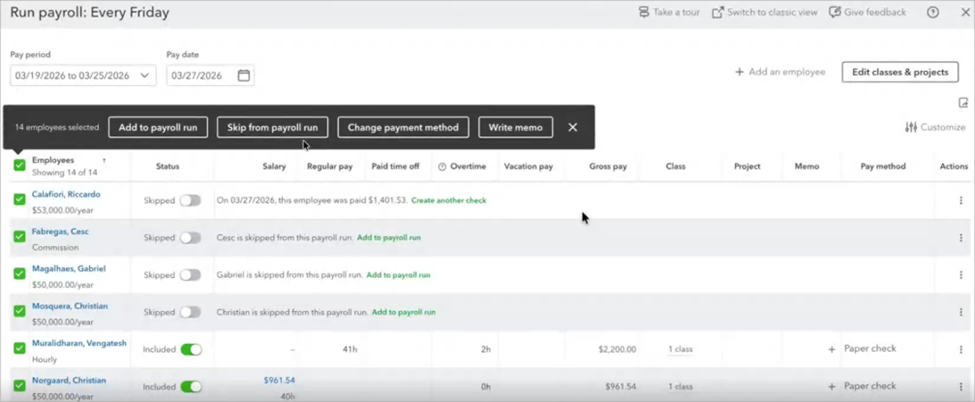
7) Easily ‘skip’ employees from Payroll Run by selecting multiple employees and then selecting ‘Skip from payroll run’ from the prompt. 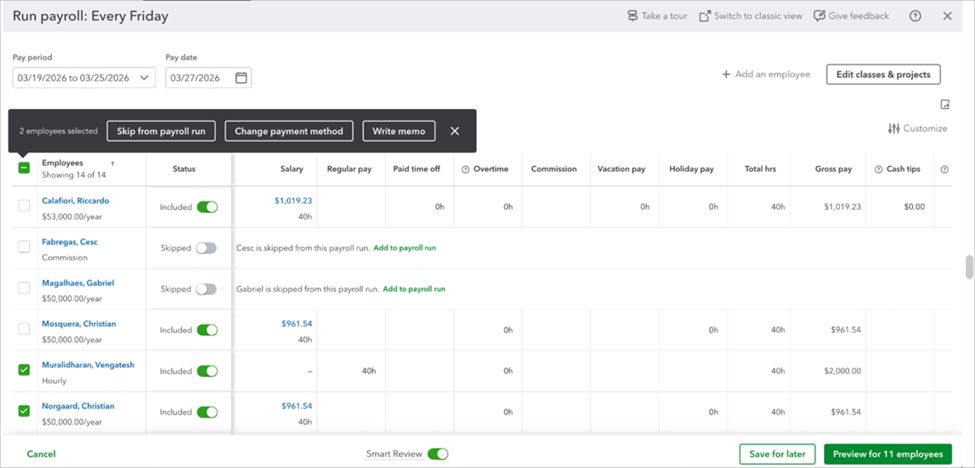
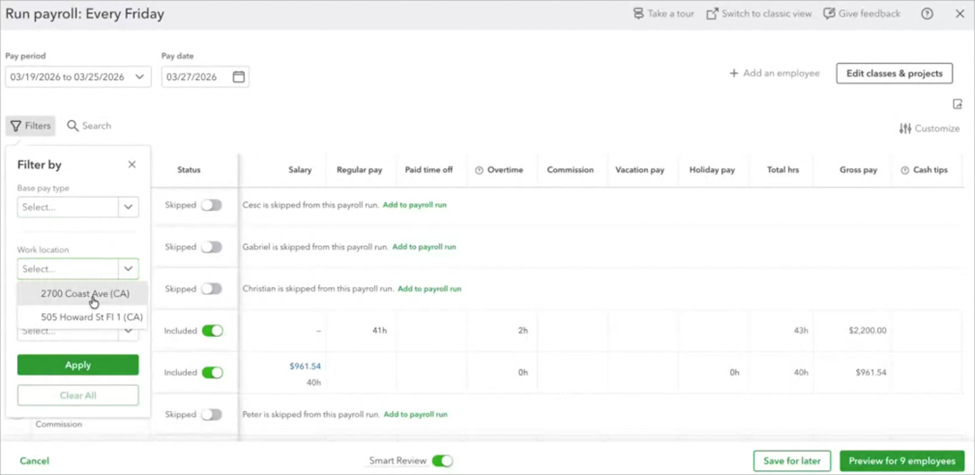
8) Select the column, or select Actions, then Edit paycheck to enter your pay details. You can enter hours, compensation, memos, or any other necessary paycheck info. Or you can now override employees’ standard location(s) and assign one or multiple locations for an employee’s payroll on a location specific run.
9) If you use QuickBooks Time, select Review Approved Time.
10) Select Preview payroll.
11) Select or review the QuickBooks Bank account to track your payroll.
12) Select Preview payroll details or Submit payroll.
13) In the Action column, select Print Paycheck(s) or Print Pay Stub(s).
14) Preview the Paycheck(s) or Pay Stub(s) when it opens, select your Printer to print.
15) Select Close.
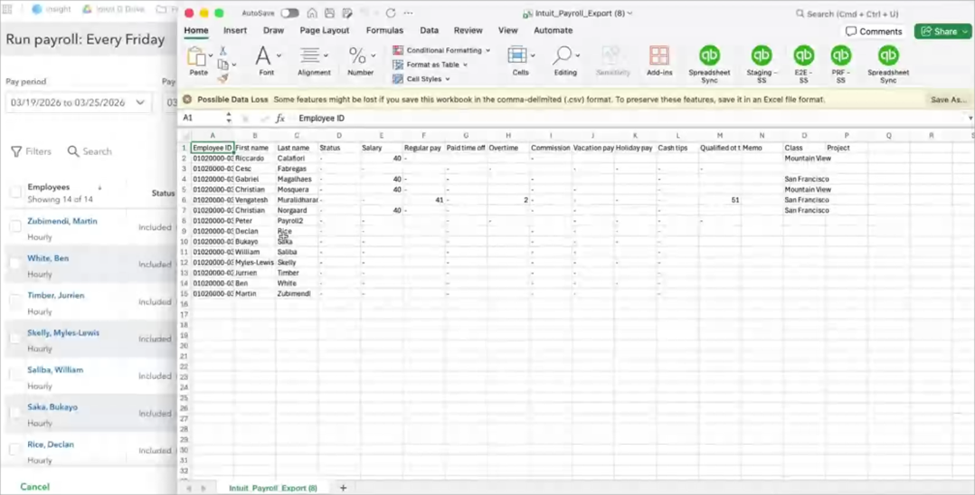
This new payroll experience also makes it simpler than ever to export employee and payroll data into Excel, you can also make changes in your spreadsheet and then import them back to QBO Payroll, making it easier than ever to make global changes.
You can learn more about this new QuickBooks Payroll experience and other recent enhancements, as well as get your QuickBooks Payroll questions answered at Insightful Accountant’s QBTalks-Apps show on April 1, 2026, at 2 PM Eastern when Andrew D’Abreu, the Director of Intuit’s QuickBooks Workforce Solutions Product Management team is Murph’s guest.
If you are not already registered for the April 1 show, you can do so below.
Register* Here for QBTalks (and QBTalks-Apps)

Disclaimer:
Content (including some graphical materials) based on Intuit media source content and in-product 'help' for QuickBooks Online Payroll. Intuit content adapted by Insightful Accountant from Intuit sources is furnished for educational purposes only.
As used herein, QuickBooks Online Payroll refers to one or more registered trademarks of Intuit® Inc., a publicly traded corporation headquartered in Mountain View, California.
Any other trade names or references used herein may refer to registered, trademarked, or copyrighted materials held by their respective owners; they are included in the content for informational and educational purposes only.
This is an editorial feature, not sponsored content. No vendor associated with this article has paid Insightful Accountant or the author any form of remuneration to be included within this feature. The article is provided solely for informational and educational purposes.
Note: Registered Trademark ® and other registration symbols (such as those used for copyrighted materials) have been eliminated from the articles within this publication for brevity due to the frequency or abundance with which they would otherwise appear or be repeated. Every attempt is made to credit such trademarks or copyrights within our respective article footnotes and disclosures.