
In this mini-series we have been looking at not only some of the core functionalities of any inventory management application but exploring how Intuit is upgrading QuickBooks Online to incorporate these functionalities, heretofore lacking within QBO.
Inventory Quantity Adjustments
A crucial function of inventory management is the ability to ‘make inventory adjustments’ based on unusual factors impacting inventory. Somebody fails to unload a case of nails from the back of the company truck used by the parts runner. The next time the runner makes a trip to the parts house the case falls out of the truck, breaks open and covers the highway with nails. Now you have two problems, your liability for all the flat tires you are causing by a road covered in nails and just as importantly, the ‘loss’ of an entire case of nails. While it is true that the flat tires are going to cost you far more than the lost nails, it is important you can adjust the inventory quantity since you recorded the nails as received.
Until recently*, if you were using a version of QuickBooks Online supporting inventory, you had to use a General Journal Entry to make an adjustment to inventory, unlike in QuickBooks Desktop. But now, if you are using QuickBooks Online for inventory control, there is a new Inventory Adjustment feature for QBO-Plus, QBO-Advanced and Intuit Enterprise Suite users.
Using this new functionality, you can adjust quantities for reasons such as damage, stock write-off, shrinkage, or expiration. While you can use inventory adjustments to modify the inventory quantities on hand, you cannot use these adjustments to modify inventory values.
Preparations for Inventory Quantity Adjustments
You must not only have an QBO SKU that offers this inventory feature, but you must also configure your QBO Company to support inventory adjustment tracking and management.
Set-up QBO for Inventory Quantity Adjustments
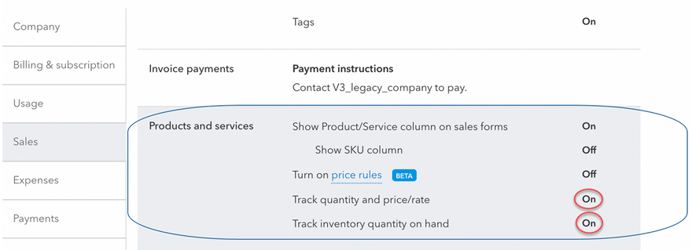
- From the QBO homepage, click the Gear
 icon to access Settings
 - Choose Account and settings under your Company.
- In the left panel, select Sales
- Turn on Track quantity and price/rate and Track inventory quantity on hand
- Choose Save,
- In the left panel, select Advanced.
- Under Categories turn on Track classes and Tracklocations:
- Choose Save, then select Done.

Using Inventory Quantity Adjustments in QBO
This new feature streamlines the manual data entry required for inventory quantity adjustments.
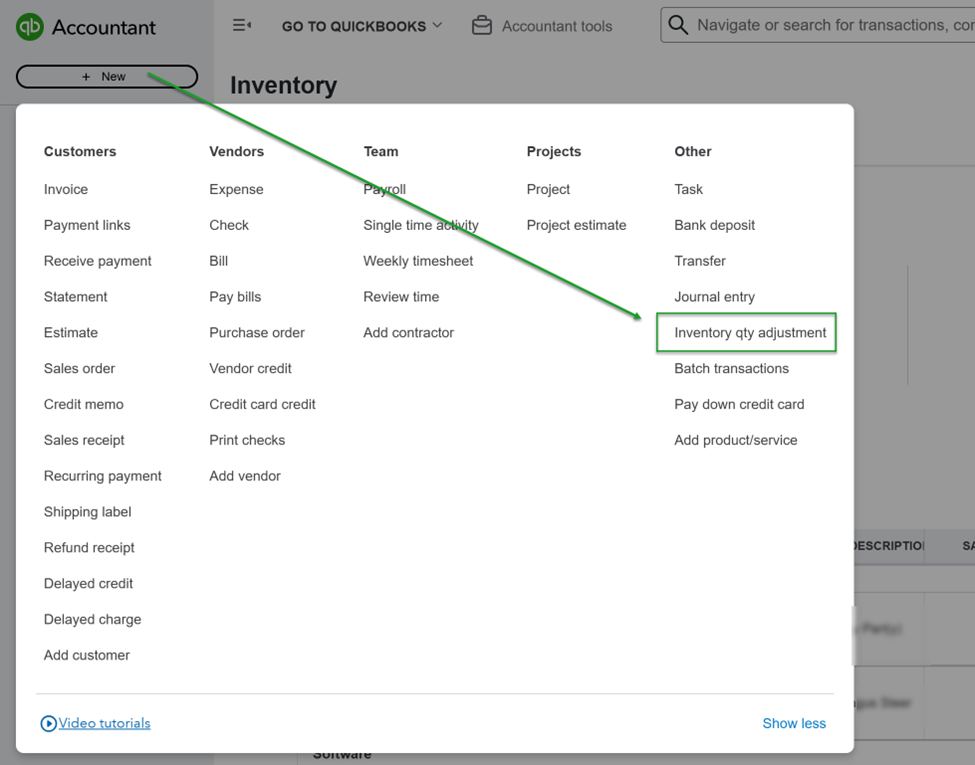
Enter an inventory quantity adjustment
-
- Select + New2.
- Select Inventory qty adjustment. (Note: If you want to adjust multiple items’ quantities, select Batch actions in Products and services.)
- Enter the Adjustment date.
- In the Inventory adjustment account dropdown, select the appropriate account. (Note: The description and current quantity on hand auto-populate.)
- For each item, enter either a new quantity or a change in quantity.
- In the Memo field, enter the details about the adjustment.
- Select Save and close.
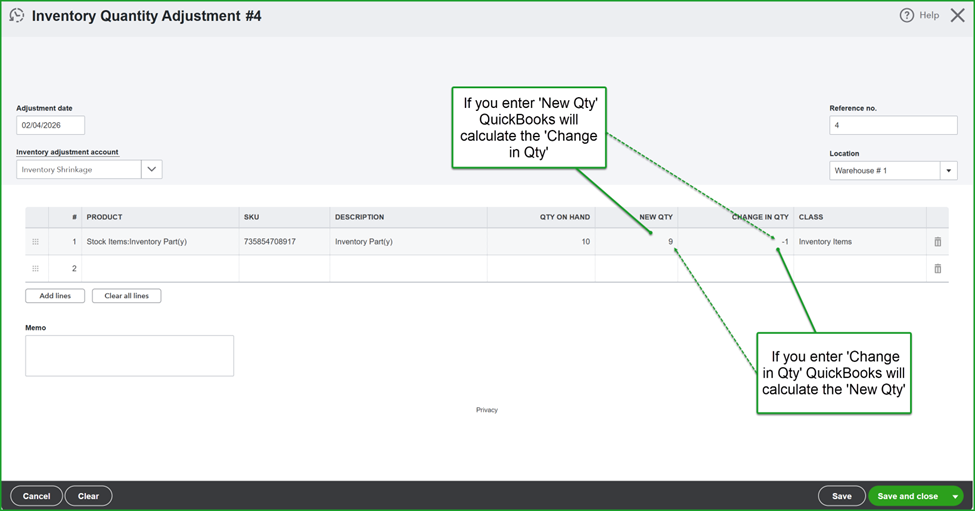
Note: When you save the inventory adjustment, QuickBooks Online automatically records appropriate adjustments to your Inventory Asset and Cost of Goods Sold (Inventory Shrinkage) accounts.
Edit or Delete Inventory Adjustments
Be very careful when editing previously entered inventory adjustments since this will likely impact your accounting. Reach out to your accountant if you're not sure if you should make such adjustment(s).
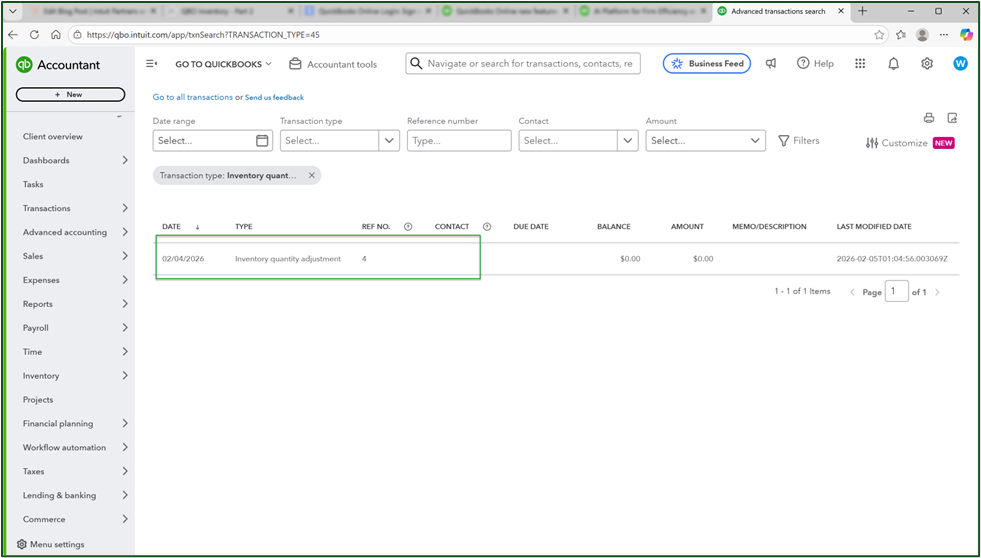
-
- Select Search, then Advanced search.
- From the All Transactions dropdown, select Inventory Quantity Adjustment.
- In the Inventory adjustment account dropdown, select the appropriate account.
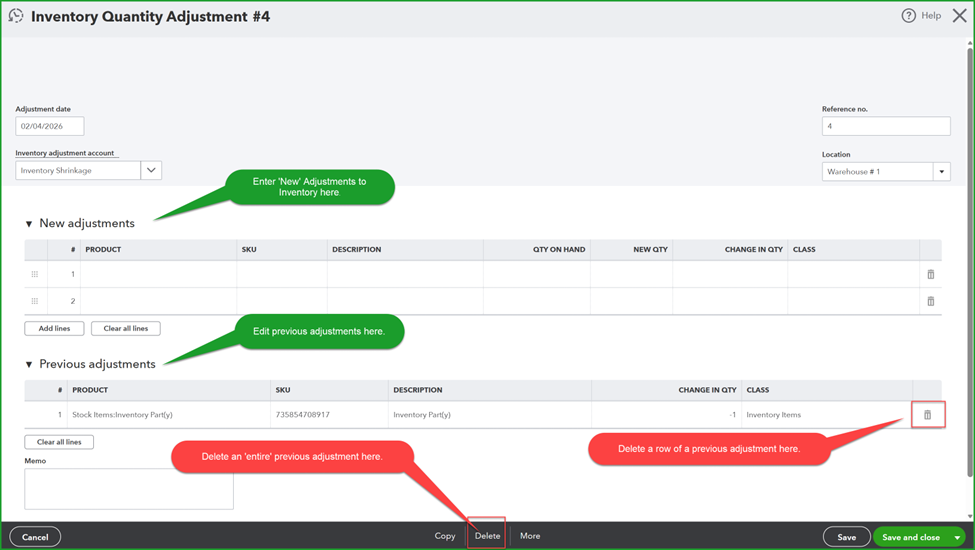
- Select Search, then select the adjustment you want to edit. This opens the inventory quantity adjustment. You can add new adjustments, edit previous adjustments, or delete them.
- To edit previous adjustments, change the Adjustment date and the Inventory adjustment account if necessary; then edit the details in the Previous adjustments section.
- To add new adjustments, enter the details in the New adjustments section.
- To delete the adjustment, select the Trash can to Delete the adjustment.
- Enter an optional note explaining why you edited the adjustment in the Memo field.
- Select Save and close.
In addition, a new Done-for-you inventory quantity adjustments feature should soon be available. QBO users will:
- Prepare a physical inventory worksheet (PIW) from the Reports >> Inventory list,
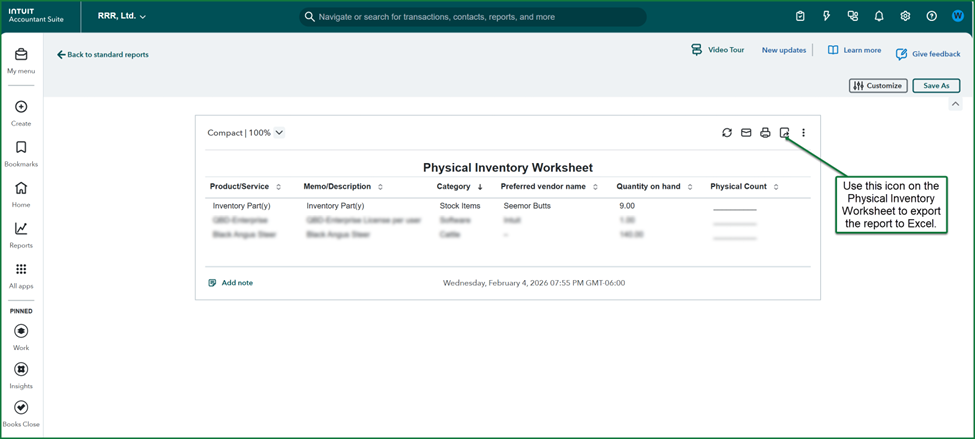
- Export the PIW to their spreadsheet application,
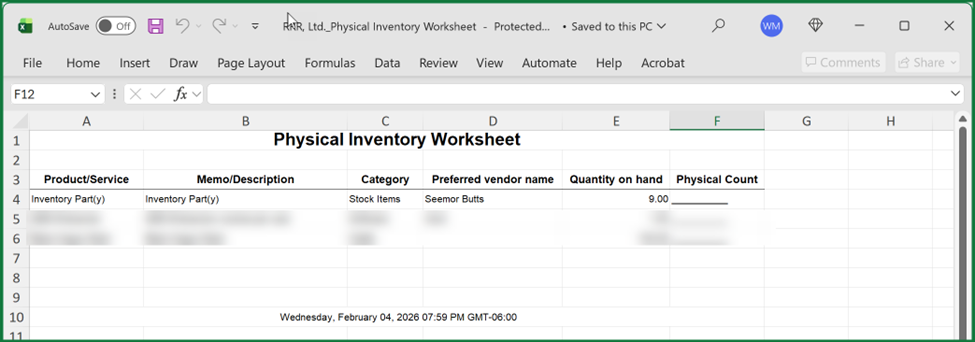
- Have warehouse staff complete an Inventory cycle count and record it on the PIW,
- Upload the spreadsheet version of the PIW into QuickBooks, and
- QuickBooks will automatically prefill the adjusted counts into an Inventory Quantity Adjustment form for review.
- Upon being ‘Saved’ the Inventory counts will be adjusted for every item on the PIW.
Insightful Accountant will have more about this new functionality once it becomes available within our product test version(s).
PS – what I’m waiting on is that drone that can fly through your warehouse and do the cycle count for you, chat with the Inventory (AI) Agent and post the inventory count updates while we hope the drone doesn’t fly out the skylight.
Footnotes:
*- this feature appears to be rolling out on a cyclic basis. Not all QBO1 users may experience this feature simultaneously.
1- the term ‘QBO’ used here is intended to specifically mean: QuickBooks Online Plus, QuickBooks Online Advanced and Intuit Enterprise Suite. The feature will also be available to those ‘other QBO SKUs’ that incorporate an optional ‘inventory feature’ for QuickBooks.
2 – your QuickBooks version my differ in appearance from those used in this feature. Not all QuickBooks ‘new feature releases’ roll out to all users, and all QuickBooks SKUs at the same time. Pre-release features illustrated may differ at the time of final release.
Disclosures:
Some feature content was adapted Intuit media source content including In-product Help or other Customer Support web content. Some content including graphic images captured during actual product use. Features adapted by Insightful Accountant from Intuit source content are furnished for educational purposes only.
Intuit® Inc., is a publicly traded corporation headquartered in Mountain View, California. Intuit is the global financial technology platform that powers prosperity for the people and communities we serve. With approximately 100 million customers worldwide using products such as TurboTax, Credit Karma, QuickBooks, and Mailchimp, we believe that everyone should have the opportunity to prosper. We never stop working to find new, innovative ways to make that possible. Please visit us at Intuit.com and find us on social for the latest information about Intuit and our products and services.
Other trade names or references, if any, used within this feature refer to registered, trademarked, or copyrighted materials held by their respective owners and are included only for informational and educational purposes.
This is an editorial feature, not sponsored content. No vendor associated with this article has paid Insightful Accountant or the author any remuneration to be included in this feature. The article is provided solely for informational and educational purposes.
Note: Registered Trademark ® and other registration symbols (such as those used for copyrighted materials) have been eliminated from the articles within this publication for brevity due to the frequency or abundance with which they would otherwise appear or be repeated. We attempt to credit such trademarks or copyrights within our respective article footnotes and disclosures.