
One justification for many QuickBooks Desktop users who have not migrated to QuickBooks Online was the lack of support for inventory, including the absence of Sales Orders. But it's time to reconsider the cloud-based Intuit product line because those limitations are a thing of the past.
While it is true that Intuit's cloud-based products (QBO and Intuit Enterprise Suite) lack the kinds of advanced inventory functionality available to QuickBooks Desktop Enterprise users including manufacturing functionality and warehouse management, the fundamental inventory and sales functionalities of Intuit's cloud offerings are finally on par with QuickBooks Desktop Pro and roughly 85% of QBD Premier's inventory capabilities.
When Intuit first introduced the 'new' QBO, nearly 13 years ago everyone was excited over a cloud based version of QuickBooks which we anticipated to be the equivalent of what was then called QuickBooks (QuickBooks Desktop Pro and Premier). I don't think any of us at that 'Premier showing' of QBO really thought it would start off as a competitor for QuickBooks (Desktop) Enterprise, I certainly didn't.
A Brief History of QBO Inventory
And, while that first version of the new QBO was slick and fast, in comparison to the 'original QBO', we found that it was seriously lacking on critical functionalities collectively called 'inventory.' Intuit assured us that 'inventory' was on the way. During these 13 years that have passed since the release of the new QBO, a number of 3rd-party App (3PA)Developers have 'filled the gap' of inventory and manufacturing capabilities. Most notedly, SOS Inventory was the first such App (at least as I recall) to almost immediately connect with QBO and offer inventory and manufacturing capabilities.
Another 3PA was Trade Gecko. In late 2020 I wrote three articles about Intuit's acquisition of Trade Gecko, an outstanding eCommerce friendly Inventory management application. In those articles I forecast that Intuit's engineers would eventually integrated the 'inventory guts' of Trade Gecko into QBO. Soon after, I was shocked, when Intuit renamed Trade Gecko as QuickBooks Commerce and offered it as a stand-alone add-on for 'new' QBO-Advanced customers.
However, behind the scenes, Intuit was actually integrating various eCommerce and Inventory innovations into QBO based upon the functionality of Trade Gecko.
One of the critical inventory functionalities the 3PA Developers, like SOS and Trade Gecko, made available to QBO users was 'Sales Orders'. And Sales Orders were one of the key 'inventory' changes QBO engineers made available in 2023. Even so, there was a problem, those early Sales Orders could only be populated via the eCommerce Channels, QBO users had no interface with which to manually create them.
But the writing was on the wall, if vast numbers of QuickBooks Desktop users were to migrate to QBO, then Intuit had to make significant enhancements to QBO Inventory capabilities. Sure enough, within the last 18 months (or so) we really have seen 'make the difference' inventory capabilities incorporated, first into QBO-Advanced, then into Intuit Enterprise Suite, then into QBO-Plus, and now into the remaining QBO line-up as an 'Inventory Add-on*.'
What's Needed and What's Provided
From an inventory sales standpoint, there are three basic forms that are required to properly track operations:
- Estimates which are a tool to provide customers with price quotes and estimated delivery. However, it's important to note that estimates neither commit inventory on hand (or on order), or otherwise impact inventory availability.
- Invoices reflect an actual sale, and more specifically a sale that is either 'delivered' on 'in transit' by a common carrier. Invoices have altered the financials (on an accrual basis) by reducing the value of the inventory from the inventory asset account, and increasing the cost-of-goods and sales income accounts.
- Bridging the gap between Estimates and Invoices is the 'Sales Order.' These forms commit inventory on hand (or on order) for a sale's commitment to a specific Customer. In effect, they represent the 'contract' agreed to by both parties, the seller and the customer. For most businesses selling inventory, they are also the tool that serves to 'pick the products', 'pack the products' and 'ship the products' from the actual inventory location(s). Let me also interject that 'Sales Orders' are also the tool that tracks inventory that may not even be available, such as stock that is on order by the seller and appearing on a Purchase Order for fulfillment of the customer's order.
Without Sales Orders an inventory-centric business simply can not 'sell' correctly deliverable inventory. Obviously, if an inventory centric business is based on retail sales, like a grocery store, dry goods store, mercantile, etc. they rely on 'Sales Receipts' which reflect the cash sale at the time the inventory actually exchanges hands from seller to buyer.
My point is, that for many years, third-party Apps were the only way inventory-centric businesses could make use of Sales Orders and Inventory-management when relying on QBO for their accounting. However, Intuit added limited functionality sales orders for Plus and Advanced users the middle of 2025, allowing users to track customer orders before invoicing. QBO slowly rolled out this feature, making it a standard part of higher-tier subscriptions to move beyond a QuickBooks Desktop-only feature.
As part of Intuit's incorporation of eCommerce functionalities into QuickBooks Online products, the initial release of Sales Orders was focused exclusively at the recording of eCommerce sales commitments. In other words, the fact that Sales Orders could be generated within QBO did not mean that a QBO Sales Order was the same as a QBD Sales Order. QBO Users had no way to actually generate a Sales Order, only eCommerce connectivity could produce such a document.
However, since mid-2025, Intuit's cloud-based accounting products (QBO1 and IES) have offered Sales Orders and Intuit is actively improving their functionality such that they now, at least are pretty much equal (in my mind) to that found within QuickBooks Desktop Pro and Premier. When Intuit will offer Sales Order capabilities, found in QuickBooks Desktop Enterprise, like the 'Sales Order Fulfillment Worksheet' or the 'Warehouse management' functionalities associated with QBD Enterprise 'Advanced Inventory' is anyone's guess.
Using Sales Orders in QuickBooks Online
Thank goodness, QuickBooks Online Plus, QBO-Advanced, and IES users all have 'native' Sales Order functionality. As I mentioned earlier, the other QBO SKUs can gain access to them and other inventory features with Intuit's Inventory Add-on.
Steps to create Sales Order2
- Select Sales
- Choose the Sales orders tab.
- Click the New Sales Order (green) button.
- Choose which Customer the sales order is for.
- Review the Shipping address and update if needed.
- Add the Products and their Quantities.
- Select Tax if tax should be applied to this order.
- (Optional) Add a Note for the customer, or an Internal Memo for your records.
- Select Save. If you would like to print the order, select Print.
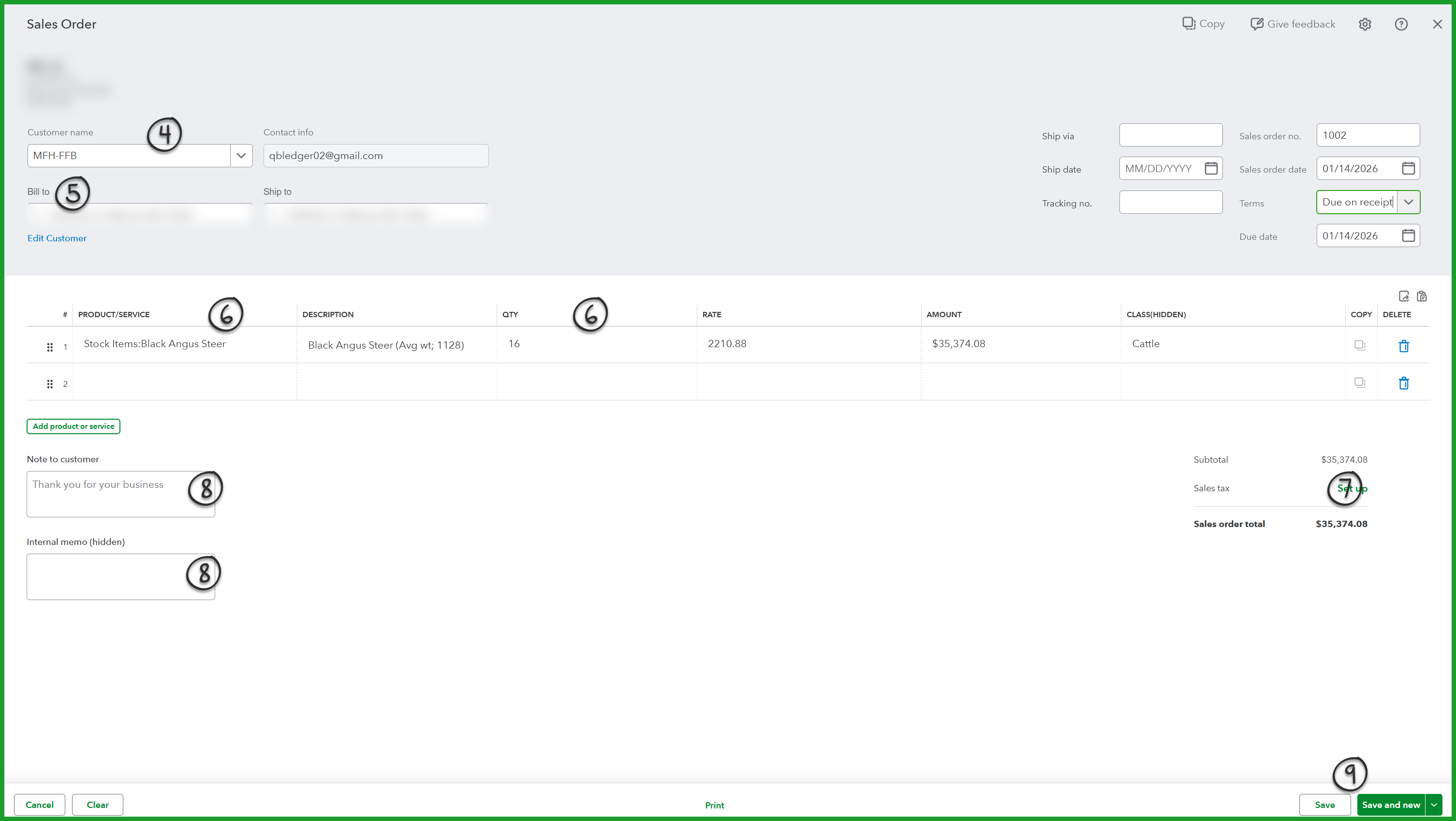
Once a sales order is saved, the committed quantity for the products you added to that order are updated. This helps you know if you need to replenish your stock.
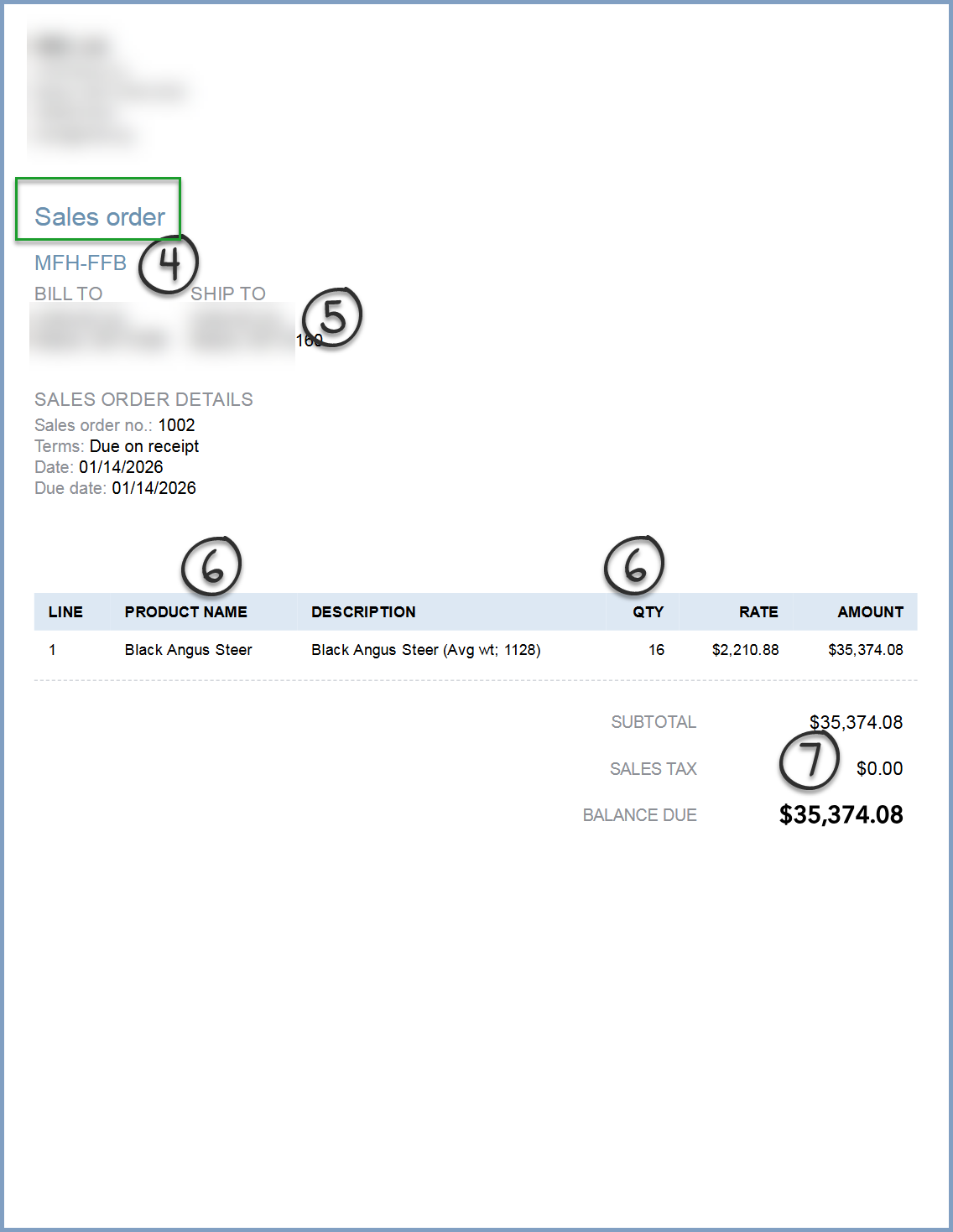
Steps to edit a Sales Order2
- Navigate to your list of Sales orders.
- Find the sales order you need to edit and select Edit.
- Make any changes you need.
- Select Save and close.
Note: Only open sales orders that are not fulfilled and have been invoiced and not paid, not invoiced, or have an invoice that is voided or deleted can be edited. Additionally, if the accounting period is closed and no invoice has been created, the sales order can be edited.
To manage Sales Orders2
- Navigate to your list of Sales orders.
- (Optional) Select Filter if you need to find a specific sales order, or group of orders.
- (Optional) Select a column header to sort by that column, ascending or descending.
Note: If you are using the eCommerce functionality within QuickBooks, it can create Sales Orders for open transactions. In that case the Channel column will display the specific eCommerce channel that created the order. If is displayed in the Channel column, the Sales Order was manually created within QuickBooks.
 - Find the sales order you need to manage.
- In the Action column, select the drop-down, and select the action you wish to take for that sales order. You can:
- Create invoice (we will discuss this below).
- Cancel order
- Mark as shipped
- Close order
Recently, QBO1 and IES Sales Order users gained greater flexibility and improved tracking for items committed to their customers. Custom fields and the ability to properly handle QBO 'bundled items' are among these new capabilities. Intelligent search simplifies finding Sales Orders, and products for sale. Sales Orders now support 'attached documents', and now (like Estimates) Sales Orders can generate Purchase Orders for items that must be order on behalf of a customer, or that need replenishment following fulfillment of the customer's order.
Let's explore the later enhancement, turning Sales Orders into Purchase Orders, in whole or in part. This process links the customer's purchase commitment recorded on the Sales Order to the seller's purchase commitment to their vendor(s) on the Purchase Order(s), helping you efficiently track order fulfillment.
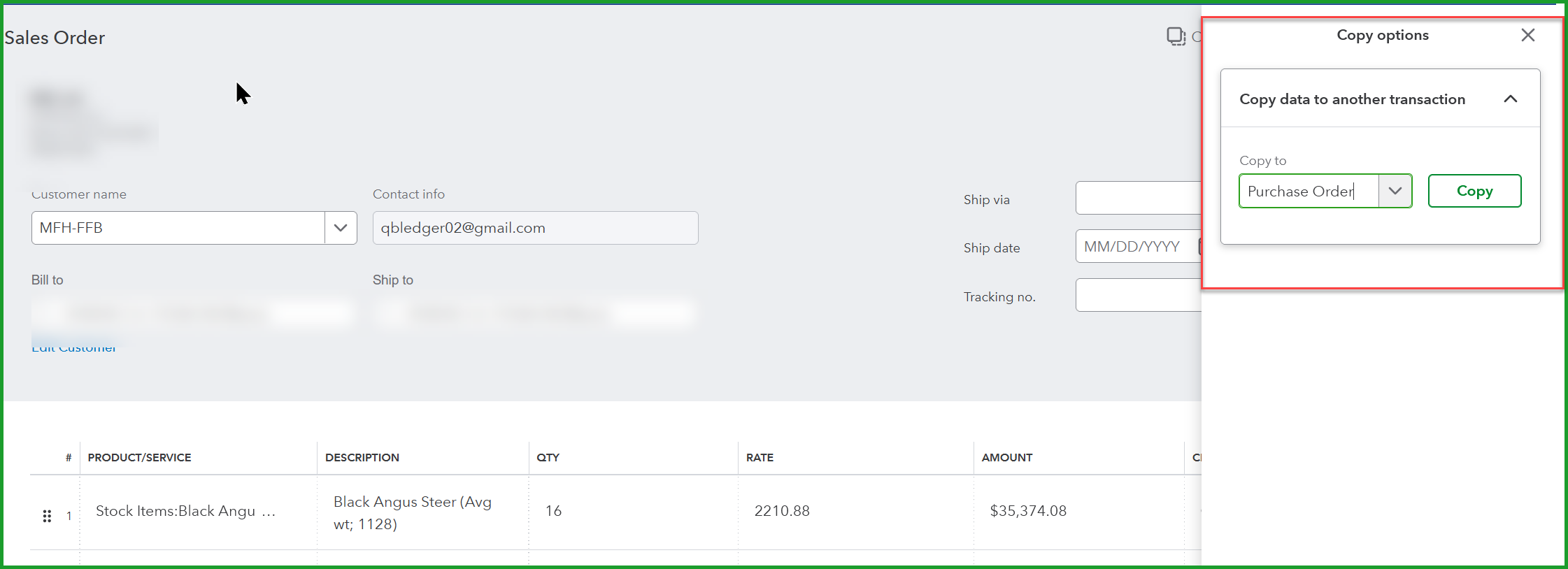
- Navigate to your list of Sales Orders.
- Open the specific Sales Order you want to fulfill.
- Identify the option to Copy a Purchase Order:
- In the upper right of the Sales Order, click Copy,
- then select Purchase Order, and click Copy
- Or, click the + New button and choose Purchase order, then link it to the SO
- A new Purchase Order form will appear, pre-filled with the items from the Sales Order.
- Select the correct Vendor for these items.
- Review the items, quantities, and shipping details (especially if shipping directly to the customer).
- Save and close or Save and send the Purchase Order to your vendor.
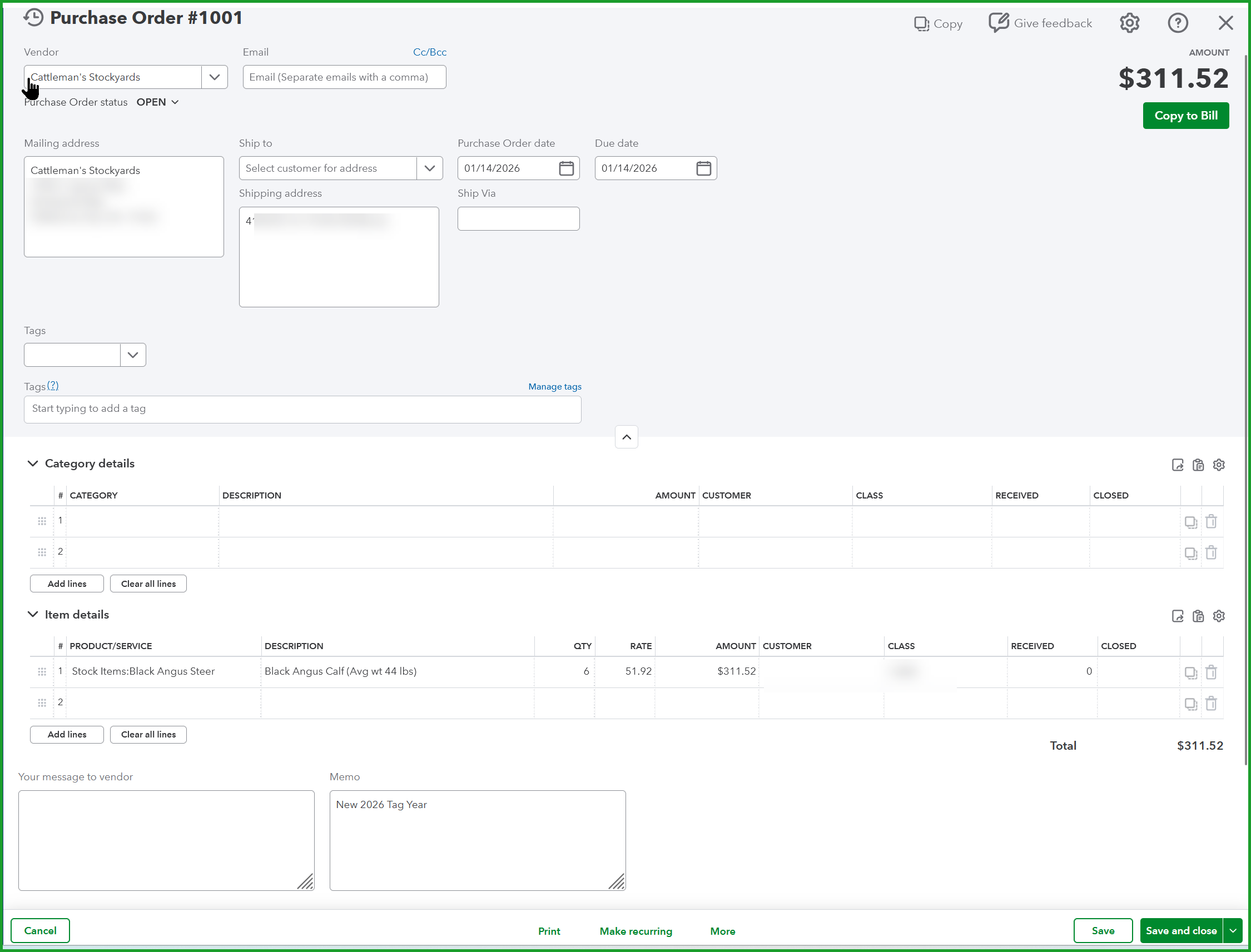
Workflow features to secure proper approval of Purchase Orders prior to sending them to the Vendor(supplier) and approving the Vendor's (supplier's) Bill prior to payment are all now part of the Inventory consideration when you are using QBO (or IES) to manager your Inventory.
On a side-note, the new 'shipping manager' added to both QBO initially, and QBD within the last few months, both of which have not been well received, based on comments which Insightful Accountant have received, was a perfect opportunity to incorporate 'shipping' as a 'point of recognition' of order fulfillment for Sales Orders; however, that seems to have had no consideration in adopting the new feature. "Boo, hiss!" (Murph)
Disclosures:
*-the present retail cost of the Inventory Add-on is $40.00 per month, price subject to change including discounting when available, or pricing increases. Price changes subject to notifications from Intuit.
1- QBO is collectively used to represent QuickBooks Online-Advanced and QuickBooks Online-Plus both of which include 'inventory' functionality, as well as QBO-Simple Start and QBO-Essentials with the 'Inventory Add-on' subscription in use.
2 - Recent changes to QBO or IES may have altered the path(s) for task completion, including the origination point.
Content based on or adapted from Intuit media source materials, including, but not limited to the various QuickBooks and IES product websites and details including supporting help documentation. Graphics taken from actual QuickBooks Online 'live' files. Intuit content adapted by Insightful Accountant from Intuit sources is furnished for educational purposes only.
As used herein, QuickBooks® , including the various QuickBooks Online SKUs and Intuit Enterprise Suite (IES) refer to one or more registered trademarks of Intuit® Inc., a publicly-traded corporation headquartered in Mountain View, California.
Any other trade names or references used herein may refer to registered, trademarked, or copyrighted materials held by their respective owners; they are included in the content for informational and educational purposes only.
This is an editorial feature, not sponsored content. No vendor associated with this article has paid Insightful Accountant or the author any form of remuneration to be included within this feature. The article is provided solely for informational and educational purposes.
Note: Registered Trademark ® and other registration symbols (such as those used for copyrighted materials) have been eliminated from the articles within this publication for brevity due to the frequency or abundance with which they would otherwise appear or be repeated. Every attempt is made to credit such trademarks or copyrights within our respective article footnotes and disclosures.