
Intuit has released a new Sales Tax Liability Report, based on user commentary, for all QuickBooks 'automated sales tax' users within the United States.
Many QBO users reported their dissatisfaction with the sales tax liability report in QBO because it didn’t correspond to the layout and information within QuickBooks Desktop versions. In order to obtain the same type of details, QBO users had to export the information into Excel and reformat using information from other reports.
An example of the issues can be summarized in feedback like, “I need to be able to see the city and county in which sales tax is calculated on the transaction report so I can easily file my sales taxes in a format required by my state’s tax authority”1.
Intuit also found that many states have sales tax requirements where the sales tax must be paid to each county or taxing authority, that are not ‘added together’ into one lump sum and remitted to the state’s tax authority.
In order to resolve these issues, the QuickBooks Online ‘sales tax team’ has reimagined the online sales tax liability report to incorporate aspects of the version found in QuickBooks Desktop. They have also introduced new capabilities to transform the report presentation, interaction and customization and streamline the reporting workflows.
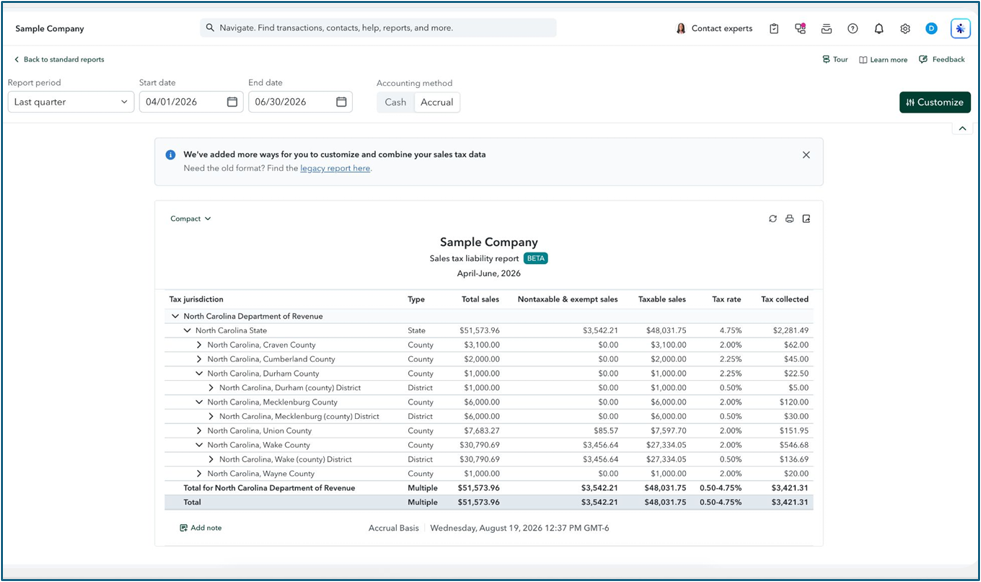
While this new sales tax liability report is available to all QuickBooks Online and Intuit Enterprise Suite subscribers within the United States, it is only applicable to those with the ‘Automated sales tax (AST) version enabled.
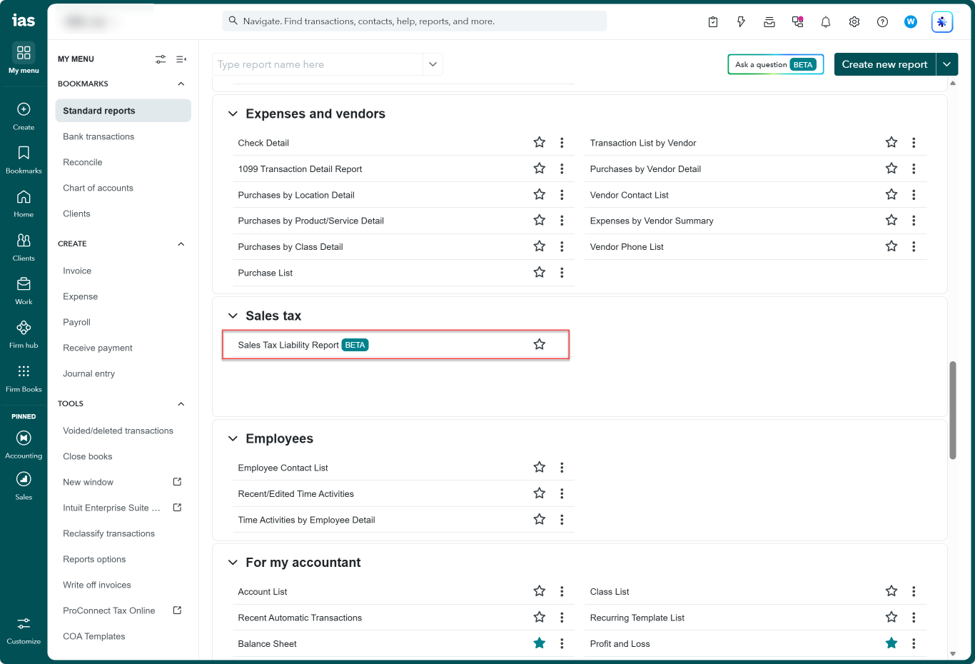
In order to access the new report within QuickBooks Online, including Intuit Accountant Suite, as well as Intuit Enterprise Suite, choose Reports (or Standard Reports) depending on your QuickBooks subscription. Scroll down to Sales Tax and identify the new ‘Beta’ version of Sales Tax Liability Report. (Note: If you are not using AST, the ‘legacy version of the Sales Tax Liability Report’ will be available to you.
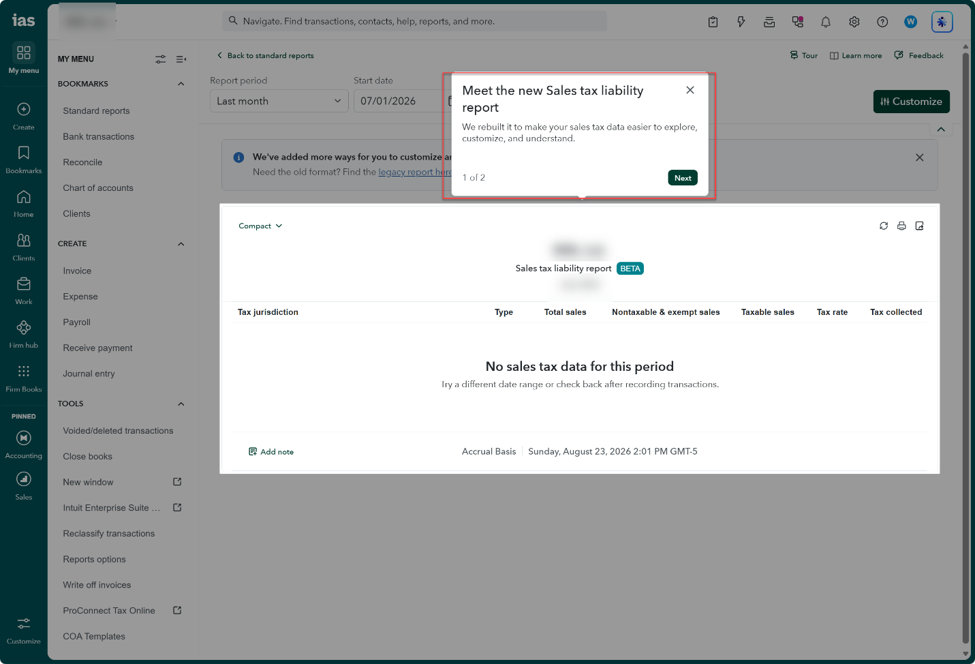
The first time you choose this report you will get a brief introduction… “Meet the new Sales tax liability report.”
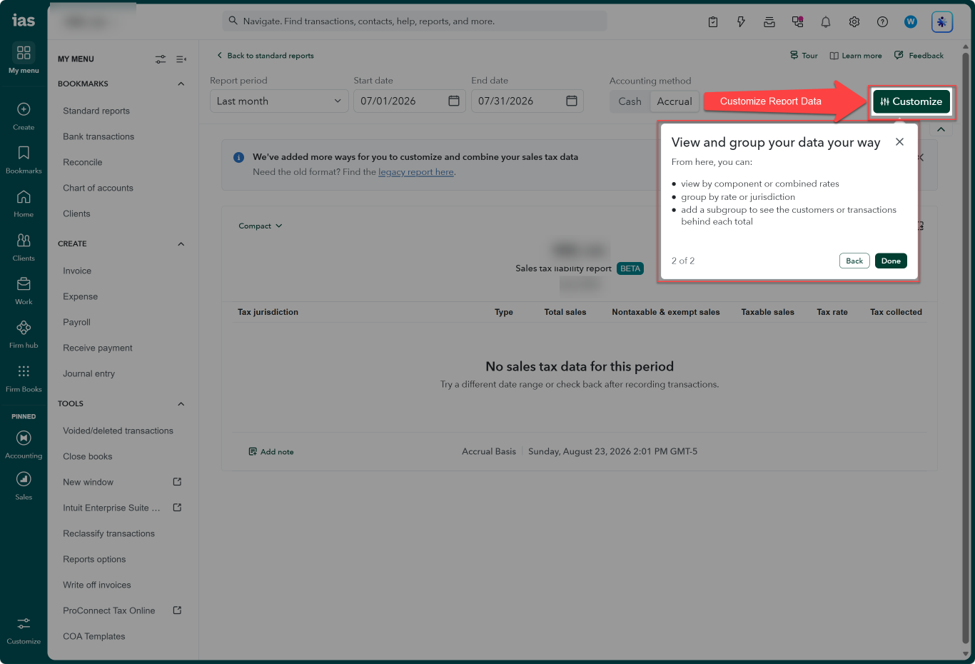
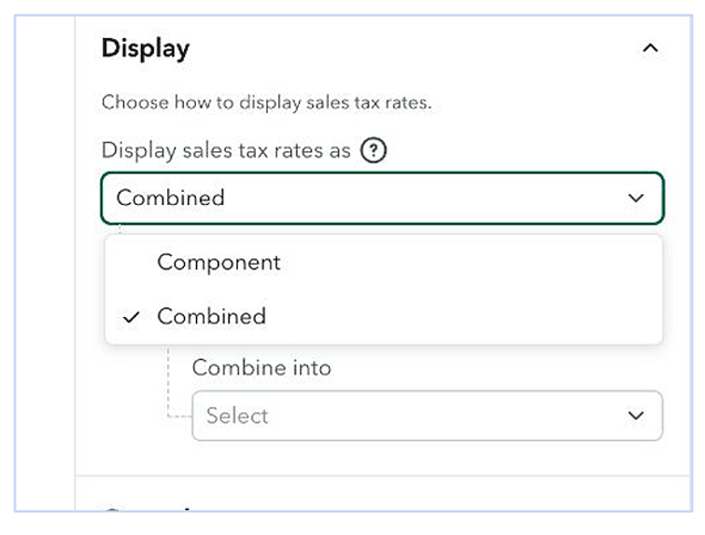
With the new report you determine the data the report reflects, just customize it to view by components or combined rates, group by rate or jurisdiction, and add subgroups to see the customers or transactions behind each total on the report.
The new report has columns with totals that relate to the various jurisdictions where applicable.
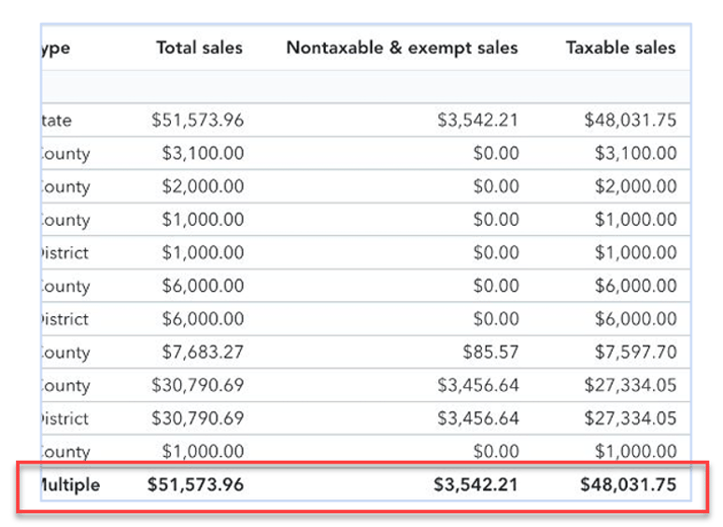
The new report also allows you to easily drill down into the various transactions that make up any number on the report.
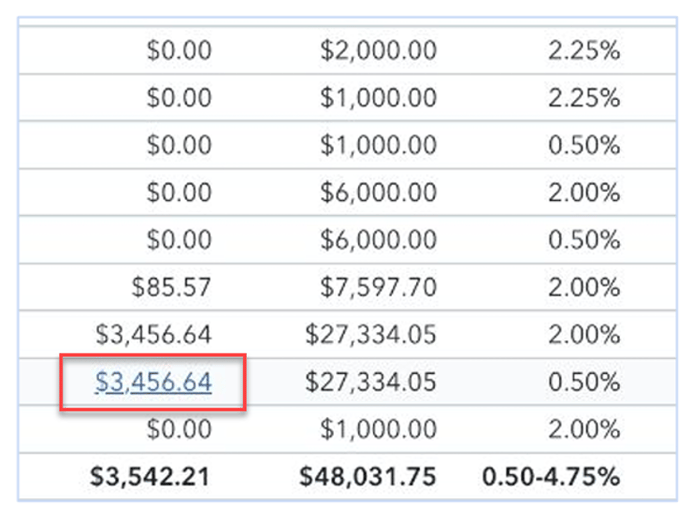
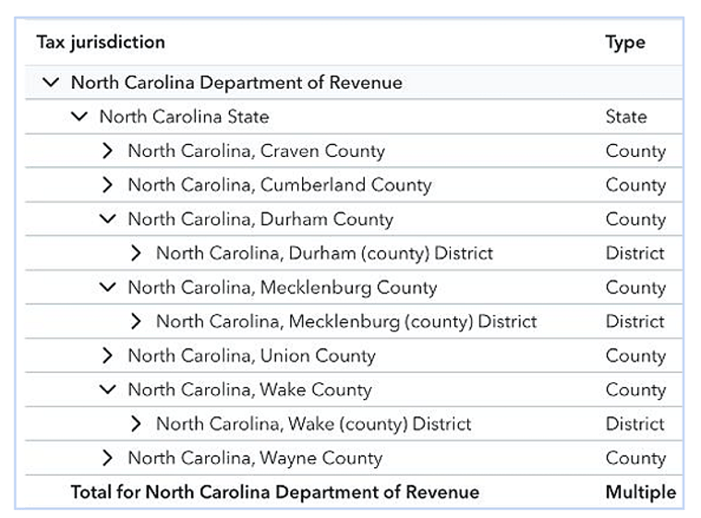
You can view your tax liabilities by tax jurisdiction within the respective jurisdictions at the state, county, county district or city levels as you need.
Then choose how you want the data to be displayed, whether the sales tax rates are reported as separate components or combined at one or more levels.
You can also transform the report from a list to a pivot table by grouping the data as you wish, allowing you to produce as many different views as you need for reporting or reference purposes.
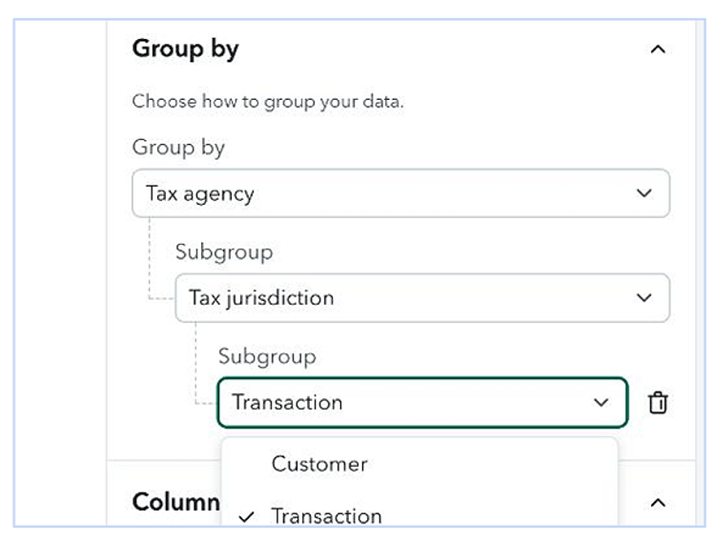
In other words, this new Sales Tax Liability Report lets you decide what data you need, how you need it, how you want it grouped and subtotaled, and how you want to see it detailed or summarized.
While the QBO Sales Tax Team thinks you will agree that the newly revised report is much more in line with user’s comments regarding the information they need for reporting, they also believe that QuickBooks users should have additional opportunity to contribute other ideas and comments which is why the feature is still ‘Beta.’ So provide them with feedback if you are in need of additional customization functionality.
Footnotes and Disclosures:
1 – Paraphrased example content, not a direct quote from any current living QuickBooks user.
Intuit Disclosure: This feature is intended to outline Intuit’s general production direction; it represents no obligation and should not be relied on when making a purchasing decision. Additional terms, conditions and fees may apply with certain features and functionality. Eligibility criteria may apply. Product offers, features, and functionality are subject to change without notice.
Some content (including feature graphics) have been adapted from Intuit media source materials and from Intuit Accountant Suite 'in-product help' documentation, or actual feature workflow(s). Insightful Accountant publishes such adapted content for educational and informational purposes only.
QuickBooks Online, Intuit Accountant Suite and Intuit Enterprise Suite are registered trademark of Intuit, a corporation based in Mountain View, CA.
Any other trade names or entities mentioned within this article that refer to products registered, trademarked, or otherwise held by their respective owners are hereby acknowledged as such. Such references are solely for informational and educational purposes.
This feature is "not" sponsored content. The article is provided for informational and educational purposes. The publication of this article does not represent an endorsement by either the editors or publishers of Insightful Accountant.
Note: Registered Trademark ® symbols have been eliminated from the articles within this publication for brevity due to their frequent occurrence. We attempt to credit such trademarked products within our respective article footnotes and disclosures.