
We told you previously about a new 'shipping experience' coming to QuickBooks Desktop. In but a few days, the long-standing shipping experience within QuickBooks Desktop will no longer be available. The new Shipping Manager will be replacing it on December 7, 2025.
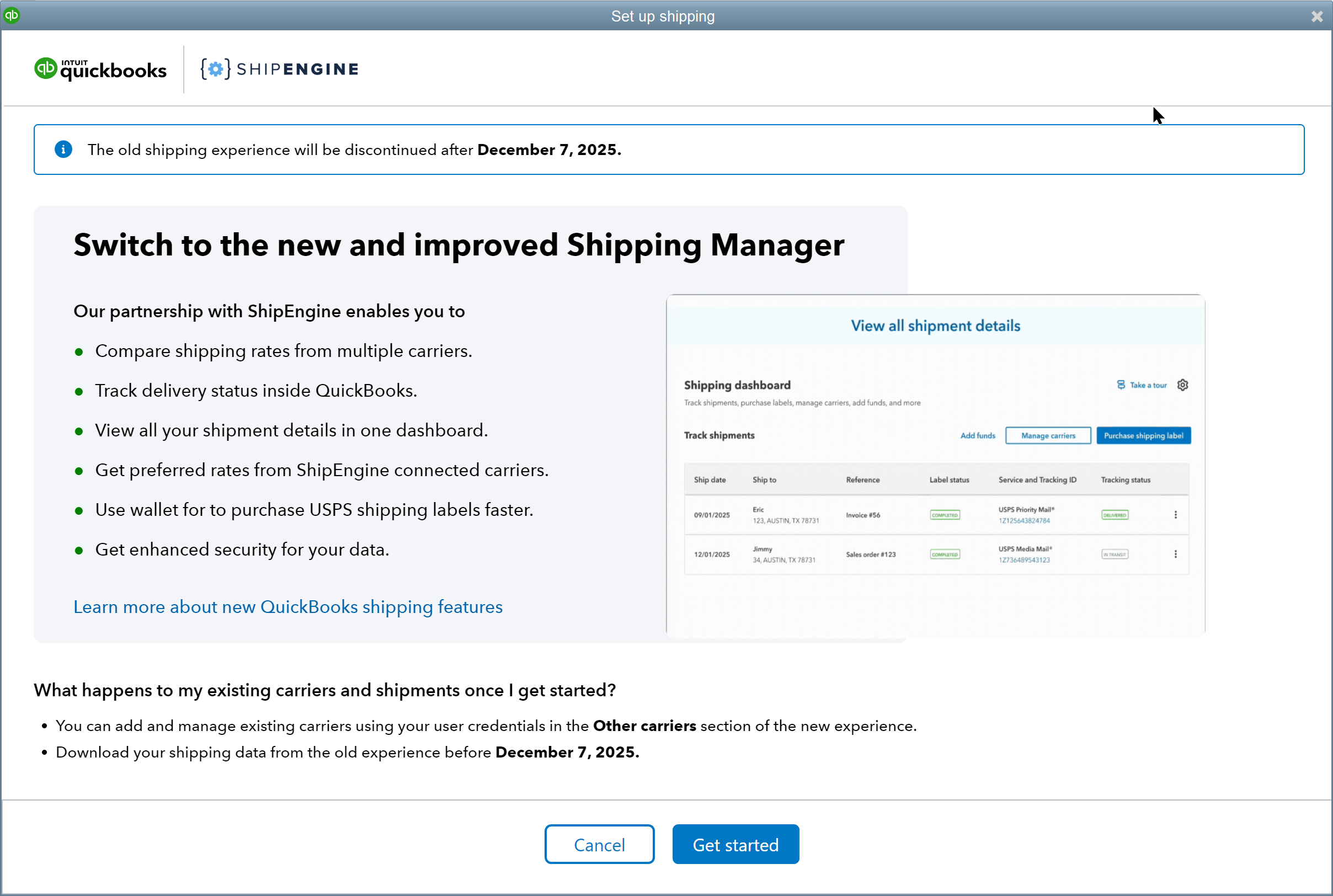
The new Shipping Manager is a cloud-based tool that lets you compare rates from different carriers, track your shipments in QuickBooks, and make your shipping tasks easier in QuickBooks Desktop. The new cloud-based experience completely replaces the shipping features associated with the current experience. This new experience is essentially being powered by the same shipping engine that was introduced earlier this year to QuickBooks Online users. You may find this episode of Intuit's "In the Know" about the QBO experience helpful to understanding the new capabilities of the new QBD experience. The new shipping experience provides:
- Seamless tracking: Track shipments directly from within QuickBooks Desktop.
- Rate comparison: Compare rates from multiple carriers in a single interface.
- Expanded carrier options: Choose from a broader range of carriers to find better rates and services.
- Enhanced security: Features advanced security measures to protect your data and login credentials.
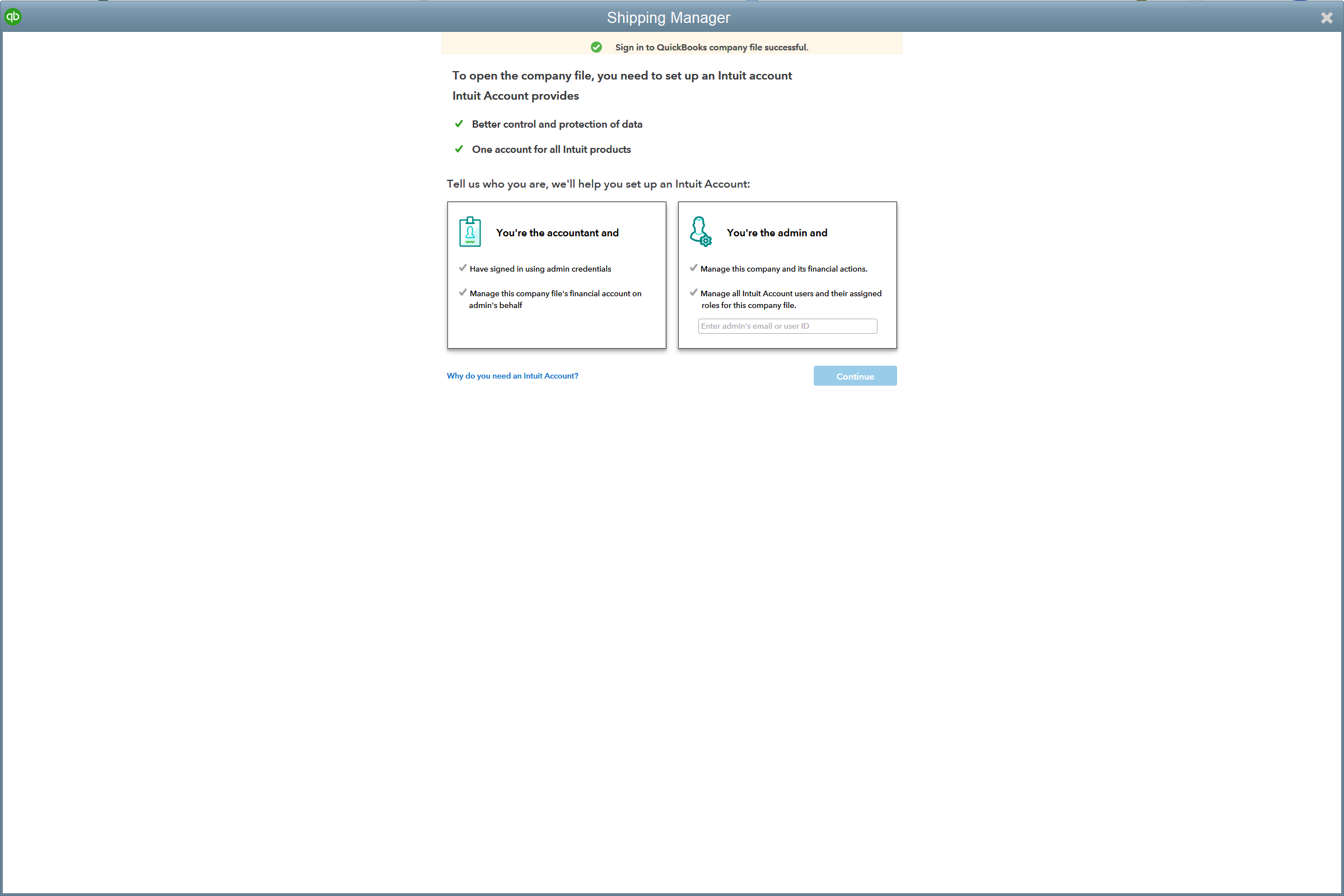
To use this new Shipping Manager, you need to update to the 2024 version of QuickBooks Desktop. You must also be able to log in to your Intuit account. Enter the Master Admin (MMA) credentials for the company file realm.
Setting Up the New QuickBooks Desktop Shipping Manager
Accessing Shipping Manager
To initiate the new Shipping Manager, access the new experience in one of the following ways:
- From the File menu, select Shipping Manager.
- From any Invoice, select Shipping Manager.
- From any Sales Receipt, select Shipping Manager.
- From the Sales Order Fulfillment Worksheet, select any Sales Order, then in the Action column, use the drop-down to select Ship with the Shipping Manager.
Begin the Setup
- Go to File, then select Shipping Manager.
- Select Get Started.
- Log in to your Intuit account. Enter the Master Admin (MMA) credentials for the company file realm to continue.
- Read and agree to the ShipEngine Terms of Service. This new agreement authorizes a new U.S. Postal Service account through the Intuit and ShipEngine partnership, offering discounted rates in QuickBooks Desktop.
- Enter the Ship from
- Enter Credit Card
- Select Confirm to finish the setup.
Fund Your Shipping Wallet
To use USPS for label purchases, you need to have funds in your shipping wallet. ShipEngine manages the wallet for USPS shipments only. For questions or issues, contact ShipEngine support at platform@shipengine.com.
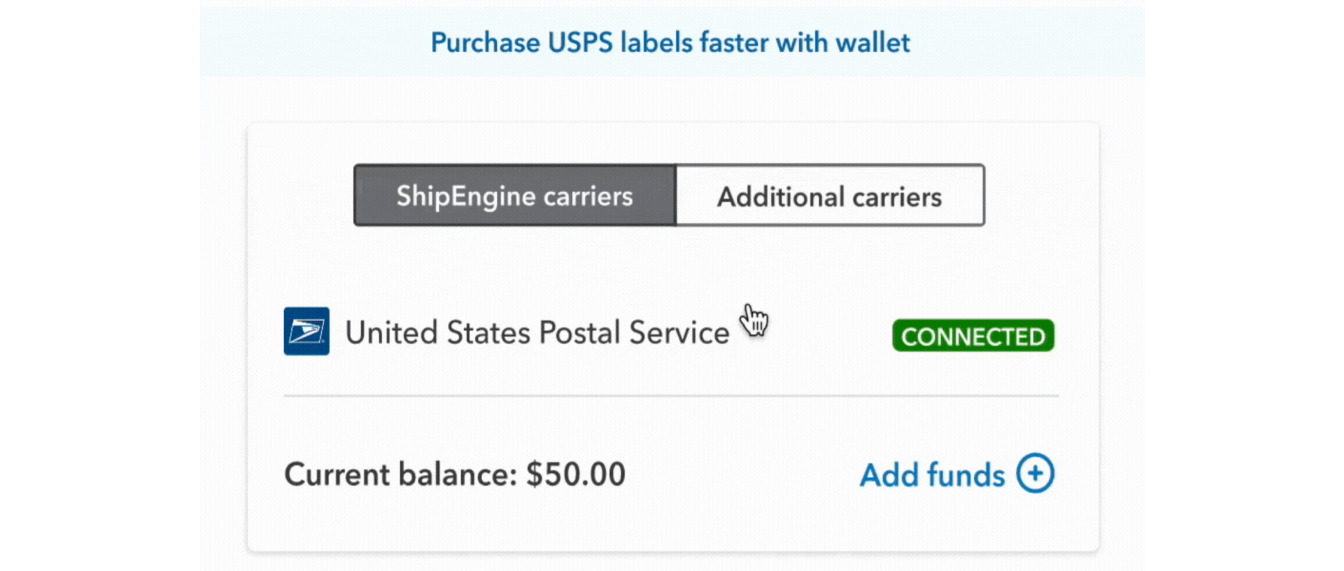
- Log in to QuickBooks as the QuickBooks Admin to add funds to this wallet.
- Go to File, then select Shipping Manager.
- Select Add Funds, then enter the amount you wish to add.
- Select Add Now.
- Turn on auto-funding to automatically refill your wallet when the balance is low:
i. When balance falls below: Set the minimum balance for auto-refill.
ii. Add the following amount: Enter the amount you want to add to your wallet.
iii. Maximum times per day: Set the maximum number of times the wallet can refill within the day. - Select Save rules
Integrate FedEx, UPS, and Stamps.com Carriers, (if needed)
- Log in to QuickBooks as the QuickBooks Admin to integrate external carriers.
- Go to File, then select Shipping Manager.
- Select Manage Carriers, then select the Additional Carrier tab.
Integrate FedEx accounts:
- Select Connect Carriers, then select FedEx from the list.
- Check the FedEx terms and conditions, then select Continue.
- Enter FedEx Account Details.
- Select Connect to link your FedEx account.
Integrate UPS accounts:
- Select Connect Carriers, then select UPS from the list.
- Enter your UPS account details.
- Enter your UPS username and password.
- Select Authenticate Account.
- Select Connect Carriers, and select com from the list.
- Enter your account details.
- Enter your com Account ID and username and password.
- Select Authenticate Account.
Setting up Label Layout and Package Units
- Go to File, then select Shipping Manager.
- Select Settings ⚙️.
- To change default print layout:
- Select Shipping Label Layout.
- Select your preferred label layout type.
- To change default package and dimension units, select Units of Measure.
- To change default print layout:
Creating Multiple Ship From (Warehouse) Locations
- Go to File, then select Shipping Manager.
- Select Settings ⚙️, then select Ship From Locations.
- Select the Add New Addresses, then enter the complete details for each warehouse address.
Set a default "Ship from" address for labels, or choose from saved addresses when buying.
Using the New Shipping Manager for Shipments
Processing Shipping Labels*
You can initiate a shipping label from Invoices, Sales Receipts, or Sales Orders:
Invoices:
- Open the Invoice you want to process a shipping label for, then select Shipping Manager.
- Select Purchase Shipping Label.
- The “From” address is prefilled with the one you provided during setup, but you can edit it if needed. The “To” address is automatically taken from the shipping address in your transaction.
- Enter the dimension and weight details of the package. You can also enter the package's declared value, if any. If you want to see a text on the label, enter that in the reference field.
- Select Add package to add more packages to the shipment, or select Copy to create a duplicate package on the following line.
- Select delivery confirmation and additional package options.
- Select how you want to pay for the shipping label(s):
- Use your account to pay for the shipping charges:
- From the Billed by options, select Sender.
- Select the carrier and service, then select Calculate rate to see the estimated rate for the shipment.
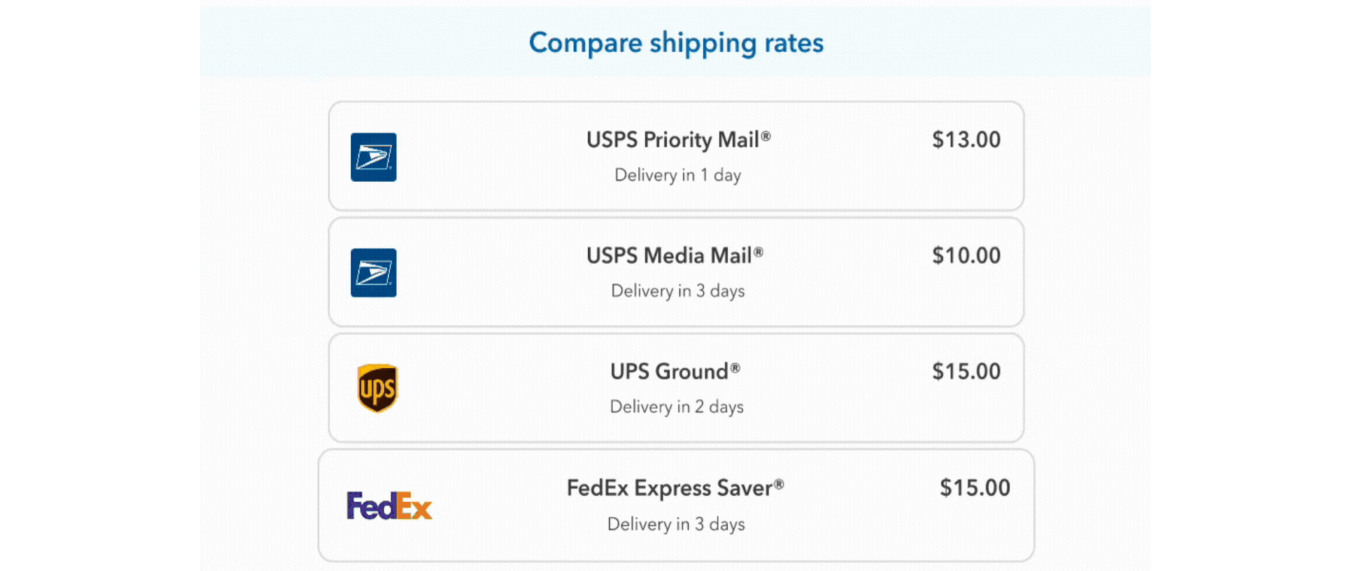
- Select Compare rate (as shown below) to see a comparison of the estimated rates between different services of all the carriers.
- Select the service you prefer, then select Purchase label.
Note: If you selected USPS as the carrier, the shipping charges are deducted from the wallet you provided during the new shipping integration. (The rates shown are only estimates and may be different from the actual rates. Intuit doesn’t charge customers any fees for shipping.)
- Have the receiver or third-party accounts pay for shipping charges:
- From the Billed by options, select the receiver or the third-party account you're sending the shipment to.
- Enter the account number and ZIP code to bill the charges to their account.
- Select Purchase label.
- Use your account to pay for the shipping charges:
- (Optional) If you want to paste the shipment and tracking info to the transaction, select the Paste tracking Information
- Select Print and close to print the label and close Shipping Manager.
Sales receipts:
- Open the Sales Receipt you want to process a shipping label for, then select Shipping Manager.
- Select Purchase Shipping Label.
- The “From” address is prefilled with the one you provided during setup, but you can edit it if needed. The “To” address is automatically taken from the shipping address in your transaction.
- Enter the dimension and weight details of the package. You can also enter the package's declared value, if any. If you want to see a text on the label, enter that in the reference field.
- Select Add package to add more packages to the shipment, or select Copy to create a duplicate package on the following line.
- Select delivery confirmation and additional package options.
- Select how you want to pay for the shipping label(s):
- Use your account to pay for the shipping charges:
- From the Billed by options, select Sender.
- Select the carrier and service, then select Calculate rate to see the estimated rate for the shipment.
- Select Compare rate to see a comparison of the estimated rates between different services of all the carriers.
- Select the service you prefer, then select Purchase label.
Note: If you selected USPS as the carrier, the shipping charges are deducted from the wallet you provided during the new shipping integration. (The rates shown are only estimates and may be different from the actual rates. Intuit doesn’t charge customers any fees for shipping.)
- Have the receiver or third-party accounts pay for shipping charges:
- From the Billed by options, select the receiver or the third-party account you're sending the shipment to.
- Enter the account number and ZIP code to bill the charges to their account.
- Select Purchase label.
- Use your account to pay for the shipping charges:
- (Optional) If you want to paste the shipment and tracking info to the transaction, select the Paste tracking Information
- Select Print and close to print the label and close Shipping Manager.
Sales orders:
- Go to Sales Order Fulfillment Worksheet.
- Select a sales order you want to ship.
- From the Action column, select Ship with Shipping Manager, then select Purchase Shipping Label.
- The “From” address is prefilled with the one you provided during setup, but you can edit it if needed. The “To” address is automatically taken from the shipping address in your transaction.
- Enter the dimension and weight details of the package. You can also enter the package's declared value, if any. If you want to see a text on the label, enter that in the reference field.
- Select Add package to add more packages to the shipment, or select Copy to create a duplicate package on the following line.
- Select delivery confirmation and additional package options.
- Select how you want to pay for the shipping label(s):
- Use your account to pay for the shipping charges:
- From the Billed by options, select Sender.
- Select the carrier and service, then select Calculate rate to see the estimated rate for the shipment.
- Select Compare rate to see a comparison of the estimated rates between different services of all the carriers.
- Select the service you prefer, then select Purchase label.
Note: If you selected USPS as the carrier, the shipping charges are deducted from the wallet you provided during the new shipping integration. (The rates shown are only estimates and may be different from the actual rates. Intuit doesn’t charge customers any fees for shipping.)
- Have the receiver or third-party accounts pay for shipping charges:
- From the Billed by options, select the receiver or the third-party account you're sending the shipment to.
- Enter the account number and ZIP code to bill the charges to their account.
- Select Purchase label.
- Use your account to pay for the shipping charges:
- (Optional) If you want to paste the shipment and tracking info to the transaction, select the Paste tracking Information
- Select Print and close to print the label and close Shipping Manager.
Viewing Shipping History and Tracking Deliveries
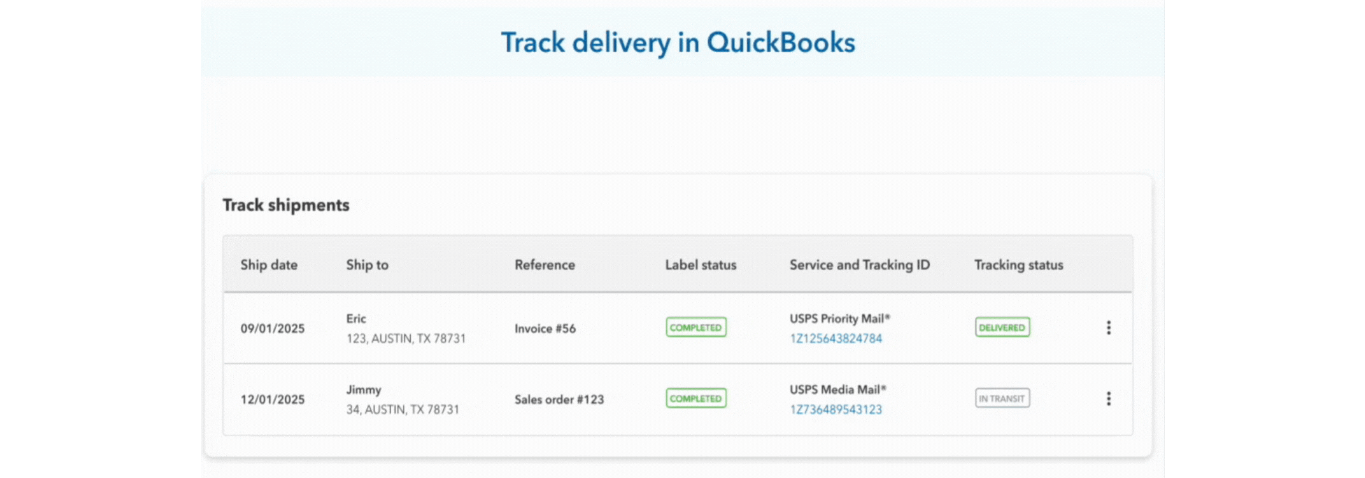
- Go to File, then select Shipping Manager.
- You'll find a list of past shipments with creation dates, transaction references, tracking IDs, and carrier services.
- Select the three-dot ፧ icon to view more details, void shipments, or print labels.
Retaining Your Prior Shipping Information
To preserve your shipping history, you must download that information during setup of the new Shipping Manager. To download your shipping data:
- Go to the File menu and select Shipping.
- Choose the carrier (FedEx, UPS, USPS) for which you need shipment details.
- Click Track or Cancel a Shipment.
- Set the date range for the shipping data you want.
- Click Report, then Print.
- In the print preview, choose "Save as PDF and select a location on your computer to save the file.
- Click Save.
- Repeat these steps for each carrier and any additional date ranges to compile a complete record of your shipping history.