
With this new feature, QuickBooks & Workforce Elite help to keep you compliant with those projects requiring ‘certified payroll reports.’
Do you, or your clients, have work that requires submission of ‘Certified Payroll Reports’? If the answer is yes, then you know that you’ve either spent hours exporting payroll data into Excel to compile information to then transfer to a WH-347, or you have purchased (or subscribed to) a software that let’s you prepare WH-347 reports from either your QuickBooks or Excel data.
If you deal with projects that involve ‘government’ funding, either federal or in many cases state governments, you likely are required to use form WH-347 to report prevailing wages for those publicly funded projects your employees work on.
One of the complications of using WH-347 is that the form is used to report ‘weekly’ payroll data, that means having to track the data in ways that not only prepare your payroll for payday but report your payroll for WH-347 purposes. It may require you to change the payroll scheduled for your employees from “every two weeks” or “semi-monthly” to “weekly”.
QuickBooks users who are subscribed to QuickBooks Workforce Elite can now draft a weekly Form WH-347 to provide the information needed to complete the form for submission. Follow the steps below to prepare the Certified Payroll Reports you require.
Preparing for Certified Payroll Reporting
1. Create Project(s) in QuickBooks Set up a project
2. Set up weekly pay schedule and add your employees to that schedule.
3. Set up standard time (ST) and overtime (OT) for each job classification.
4. Add company-paid fringe benefits (options) covering things like 401(k), health, dental, or other benefits that must show on page 2 of your certified payroll report.
5. Add your employee’s time to your project using the QuickBooks weekly timesheet (not the Time app workflow). Include the project name and hours for standard time (ST) and overtime (OT).
6. Run your payroll for the period you need to report.
Create your certified payroll report
1. Go to Reports, then Standard reports
2. Choose certified payroll report (as shown in the red box in illustration below).
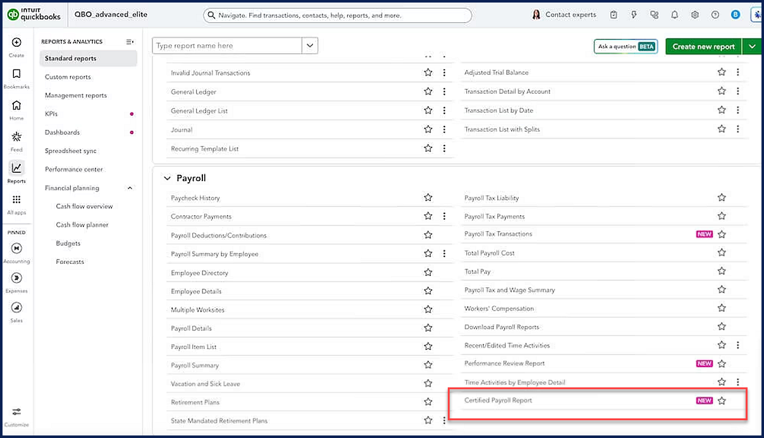
3. Select your pay period and project.
4. Select Download spreadsheet. Your certified payroll report will be generated in a spreadsheet.
Review Certified Payroll Report
-
-
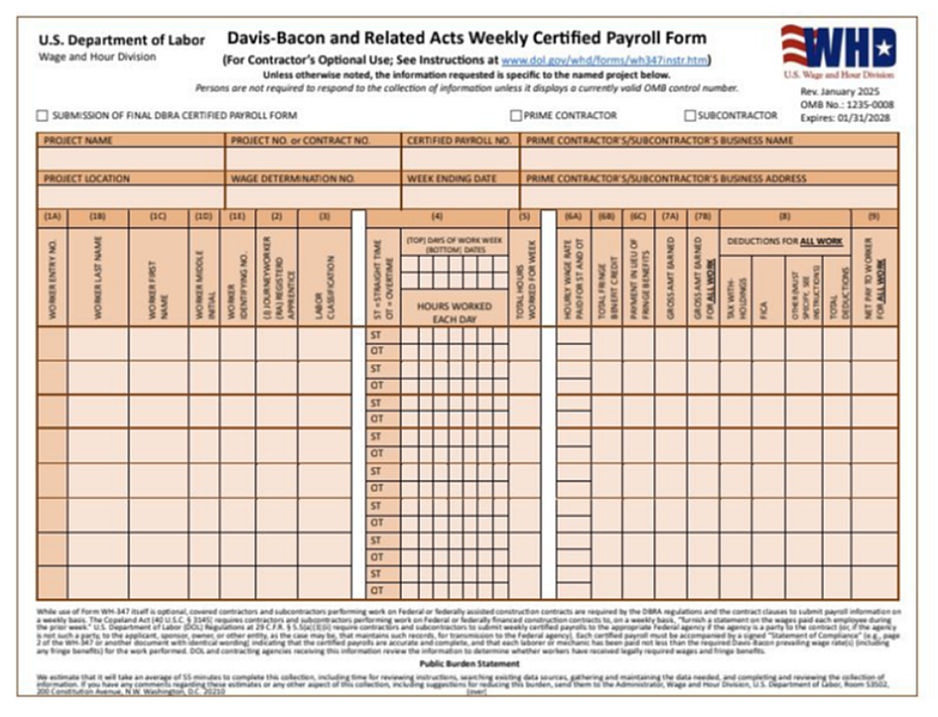
Review each section of your report for accuracy and compliance.
-
Review and approve the general ‘project and pay-period’ information.
-
Review and approve the worker-specific data, including job classification, hours and rates for standard and overtime, and spelling of employees’ names and Social Security numbers.
-
Review and approve the fringe benefits and deductions. Make sure your fringe benefits are paid as cash-in-lieu or as contributions to a bona fide plan.
-
Review and approve the gross wages and final pay.
-
Complete the Certified Payroll Report
-
-
Manually enter the applicable (following) info on the report before you send it in.
-
Enter the Project ID.
-
Enter the Wage Determination Number
-
Enter the Certified Payroll Number
-
Enter the Worker entry number
-
Add any payment in lieu of fringe benefits to 6B.
-
Make any corresponding adjustments to fields 7B and 9.
-
Enter the Apprentice/Journey-worker information
-
Review and sign the Statement of Compliance
-
With this new feature, QuickBooks & Workforce Elite help to keep you compliant with those projects requiring ‘certified payroll reports.’
Disclosures:
Content adapted in part from Intuit media sources and in-product 'help' within Intuit Accountant Suite and QuickBooks Workforce Elite. Insightful Accountant publishes such adaptations for educational and informational purposes only.
Content images taken from actual licensed Intuit product subscriptions.
QuickBooks and QuickBooks Workforce Elite are trademarked products of Intuit of Mountain View, CA.
Any other trademarks are used for informational and educational purposes, and we hereby acknowledge their registered owners.