
A reader writes in to ask, “When I attempt to open my QuickBooks Company file, the log-in screen only asks for the Admin password, even though there are multiple users established, there isn't even a user field displayed for me to select my user own account. How do I fix this problem?”
.
Problem:
.
When attempting to log-in to a QuickBooks Company file, the log-in window displays a message indicating “you need to log in as QuickBooks Administrator to proceed. Please enter the admin (owner) password for the company:”
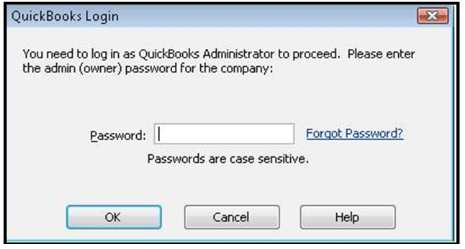
There isn’t even a field displayed for you to enter or select an alternative user even though you know other user accounts exist for this Company file. (Note: If the Admin user account name has been changed, the account name will be displayed above the Password field.)
.
Resolving the Error:
.
1) Close QuickBooks
2) End all QuickBooks related processes from the Windows Task Manager
- Right click on the Windows toolbar at the bottom of the screen
- Select Start Task Manager
- When Task Manager opens click on the Processes tab.
- Insure this list is ‘showing’ all processes from all users.
- Click on the Image Name tab in order to arrange all processes alphabetically (they may already be sorted in this manner, or by some designated column, such as memory.)
- Scroll down the list of processes until you find the QuickBooks related processes that will start with QB (as shown below), verify each process using the Description column data. [Your list may not be identical to that shown below, but should be similar.]
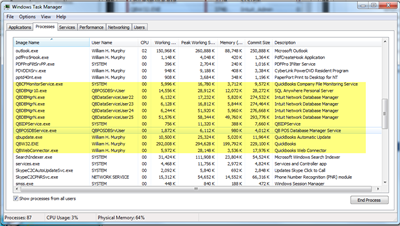
- Select each of the QB processes one by one, and click End Process for each selection.
- Click OK when the warning message appears.
- Repeat these steps for every QB process listed
- After ending all of the QB processes, close Task Manager.
3) Delete the QuickBooks_Standard_21 start-up process from your Start-up folder
- Click the Windows Globe or Start Icon
- Select All Programs from the displayed menu
- Locate the Startup folder, and click once to open it
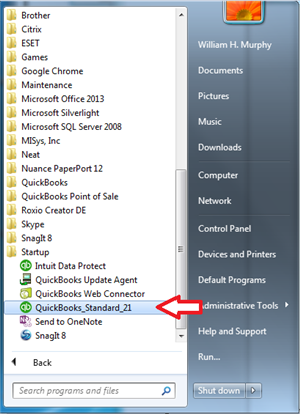
- Right click on QuickBooks_Standard_21 and select Delete
- Click Yes when the warning message appears.
4) Start QuickBooks normally – the user name field should now be displayed. Log-in to the Company file using the appropriate user name.
QuickBooks should operate normally after this.