
Use this guide to record vendor credits and refunds in QuickBooks and apply credits when paying bills.
The correct workflow depends on how you recorded the original purchase and how the vendor returned the money.
In Pay bills, you can view each available vendor credit, including its date, reference number, and available balance. Select the credits you want to use and specify how much to apply from each one. The applied credits appear when you schedule the payment, and the vendor’s email and remittance advice identify the credits used.
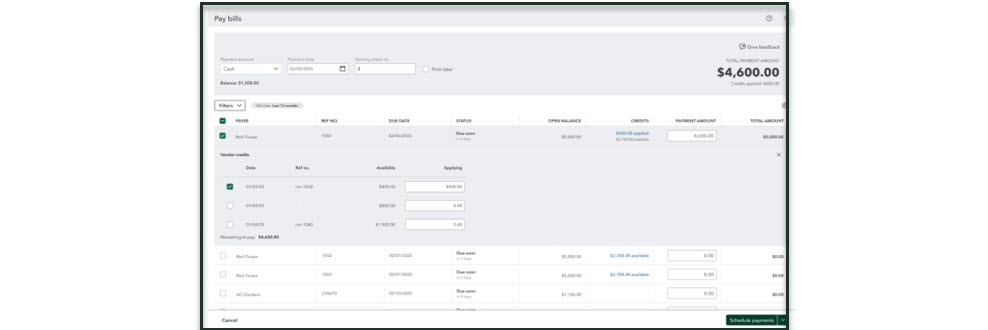
Choose the workflow that matches the original transaction and the way the vendor returned the money. Use Option 1 for a refund of an expense or check, Option 2 for a credit against an unpaid or future bill, Option 3 for a refund of a bill you already paid, or Option 4 for a refund sent directly to a credit card. If you are unsure how the original purchase was recorded, ask your accountant.
Option 1: Record a refund for expenses or checks
Use this workflow when the original purchase was recorded as an expense or check rather than as a bill. Record the vendor’s refund as a bank deposit and assign it to the same category or account used for the original expense.
- Select + Create.
- Select Bank deposit.
- In the Add funds to this deposit section, enter the following details:
- Received From: Select the vendor who issued the refund.
- Account: Select the same Category/Account used for the original expense.
- Amount: Enter the refund amount.
- (Optional) If the refund relates to a customer or project:
- Select the Track returns for customers checkbox.
- Select the specific Customer/Project.
- (Optional) If you are depositing other payments with this refund, select them in the Select the payments included in this deposit section.
- Select Save and close.
Option 2: Record a vendor credit for bills
Use this workflow when you record purchases as bills and want to apply a vendor credit to an unpaid or future bill. First create the vendor credit and then apply it in Pay bills.
Step 1: Create a vendor credit
- Select + Create.
- Select Vendor credit.
- In the Vendor ▼ dropdown, select the vendor.
- Enter the Category or Item details for the credit.
- Select Save and close.
Note: If you select an inventory item, QuickBooks will put it back into inventory. If the item is defective or if you don’t want it added back to inventory, you can make an inventory adjustment.
Step 2: Apply the credit to a bill
- Select + Create.
- Select Pay bills.
- Select the bill you want to pay.
Note: QuickBooks automatically applies the available credit to the bill. - Verify the Credit Applied amount.
- Select Save and close.
Option 3: Record a refund for a paid bill
Use this workflow when a vendor refunds a bill you have already paid. Create a vendor credit, deposit the refund to Accounts Payable, and then link the deposit to the credit so the vendor balance is correct.
Step 1: Create a vendor credit
- Select + Create.
- Select Vendor credit.
- In the Vendor ▼ dropdown, select the vendor.
- Enter the Category or Item details matching the original bill.
- Select Save and close.
Step 2: Deposit the refund
- Select + Create.
- Select Bank deposit.
- In the Add funds to this deposit section, enter the following details:
- Received From: Select the vendor.
- Account: Select Accounts Payable (A/P).
Important: You must select Accounts Payable (A/P) to link the deposit to the vendor credit. - Payment Method: Enter the method (for example, Check).
- Amount: Enter the refund amount.
- Select Save and close.
Step 3: Link the deposit to the vendor credit
- Select + Create.
- Select Pay bills.
- Select the Bank Deposit you just created.
- Verify that the Credit Applied matches the deposit amount and the Total payment is US $0.00.
- Select Save and close.
Option 4: Record a refund to a credit card
Use this workflow when a vendor refunds a purchase directly to your credit card. Record a credit card credit against the same expense category used for the original purchase.
-
Select + Create.
-
Select Credit card credit.
-
In the Payee field, select the vendor.
-
In the Bank/Credit account ▼ dropdown, select the credit card account.
-
Enter the Payment Date, Amount, Tax, and Category. Note: The category must match the original expense account.
-
Select Save and close.

Disclosures:
Feature content adapted from Intuit media source content including but not limited to the Firm of the Future blog and other promotional content furnished by Intuit media, and In-product 'Help'. Insightful Accountant is not responsible for any original Intuit content.
Intuit® Inc., is a publicly traded corporation headquartered in Mountain View, California. Intuit is the global financial technology platform that powers prosperity for the people and communities we serve. With approximately 100 million customers worldwide using products such as TurboTax, Credit Karma, QuickBooks, and Mailchimp, we believe that everyone should have the opportunity to prosper. We never stop working to find new, innovative ways to make that possible. Please visit us at Intuit.com and find us on social for the latest information about Intuit and our products and services.
Other trade names used within this feature may refer to registered, trademarked, or copyrighted materials held by their respective owners and are included within this content only for informational and educational purposes.
This is an editorial feature, not sponsored content. No vendor associated with this article has paid Insightful Accountant or the author any remuneration to be included in this feature. The article is provided solely for informational and educational purposes.
Note: Registered Trademark ® and other registration symbols (such as those used for copyrighted materials) have been eliminated from the articles within this publication for brevity due to the frequency or abundance with which they would otherwise appear or be repeated. We attempt to credit such trademarks or copyrights within our respective article footnotes and disclosures.